Sports reports: attendance, participation and results by term
Attendance, participation, coaches and results by term, sport or age group, in Excel or a PDF for your board. And your coaches' write-ups of each session.
Who took part this term, attendance for each group, which registers are missing, how the matches went: Reports works it all out from what you keep already. Export it for a board, a funder or a federation. Here's how.
1. Switch on Reports
In Settings › Customise, switch on Reports, under Tools. It joins your menu, and Session reports join Schedule (Match reports, with Teams on).
The pages use your own words, such as learners, teams and practices for a school. This guide says clients, groups and sessions.
2. Your numbers for a term
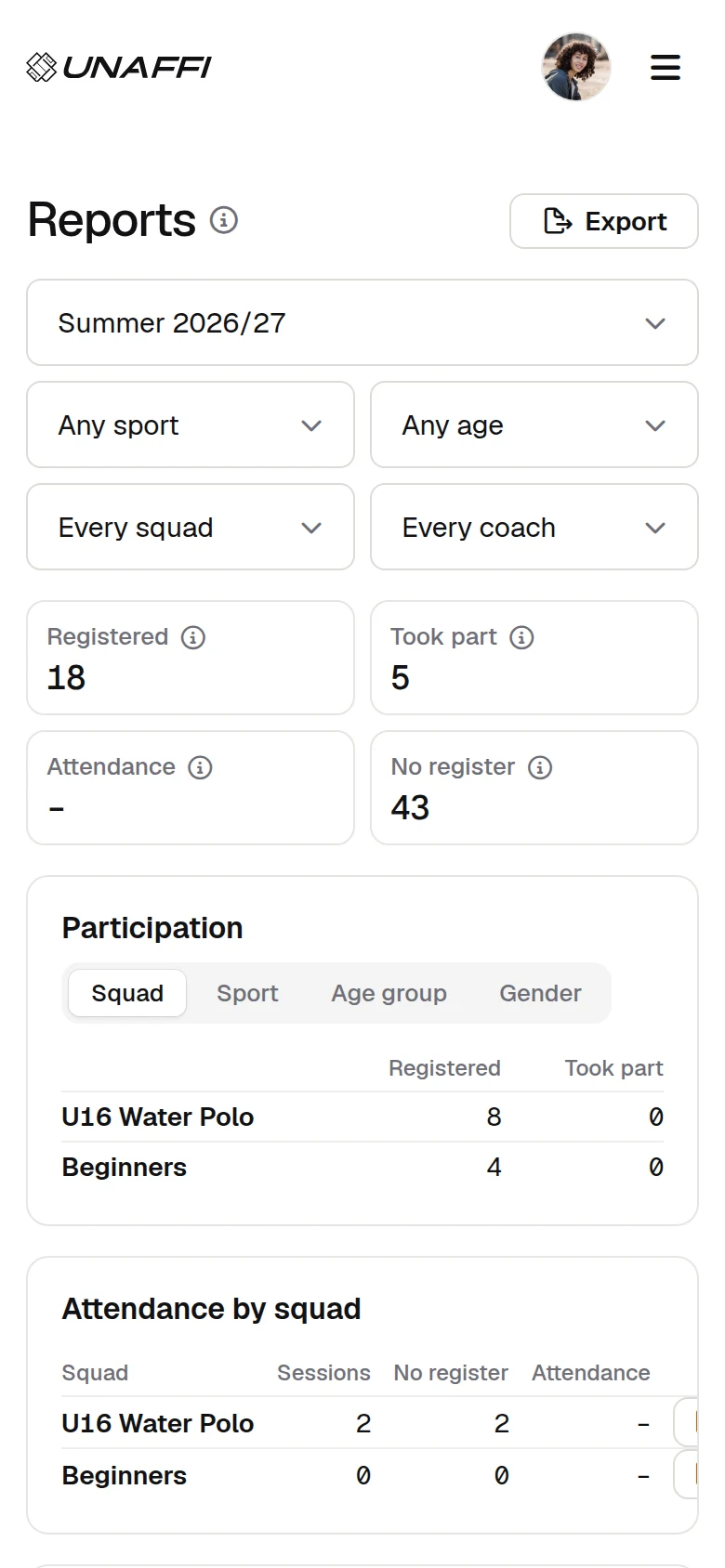
Reports starts with the term or season you're in, or the last 90 days when there's none. Under When, choose another term, or the last 30 days or 12 months. Narrow it to a sport, an age group or a group, and in a team, to one coach.
At the top: how many are Registered (in a group, on a membership or on a session so far), how many Took part (marked there at least once), their Attendance, and the past sessions with No register, which it leaves out. Then, section by section:
- Participation: registered and took part, by group, sport, age group or gender.
- Attendance by group: each group's sessions, how many went unmarked, and its attendance, with a link to its Register as a PDF.
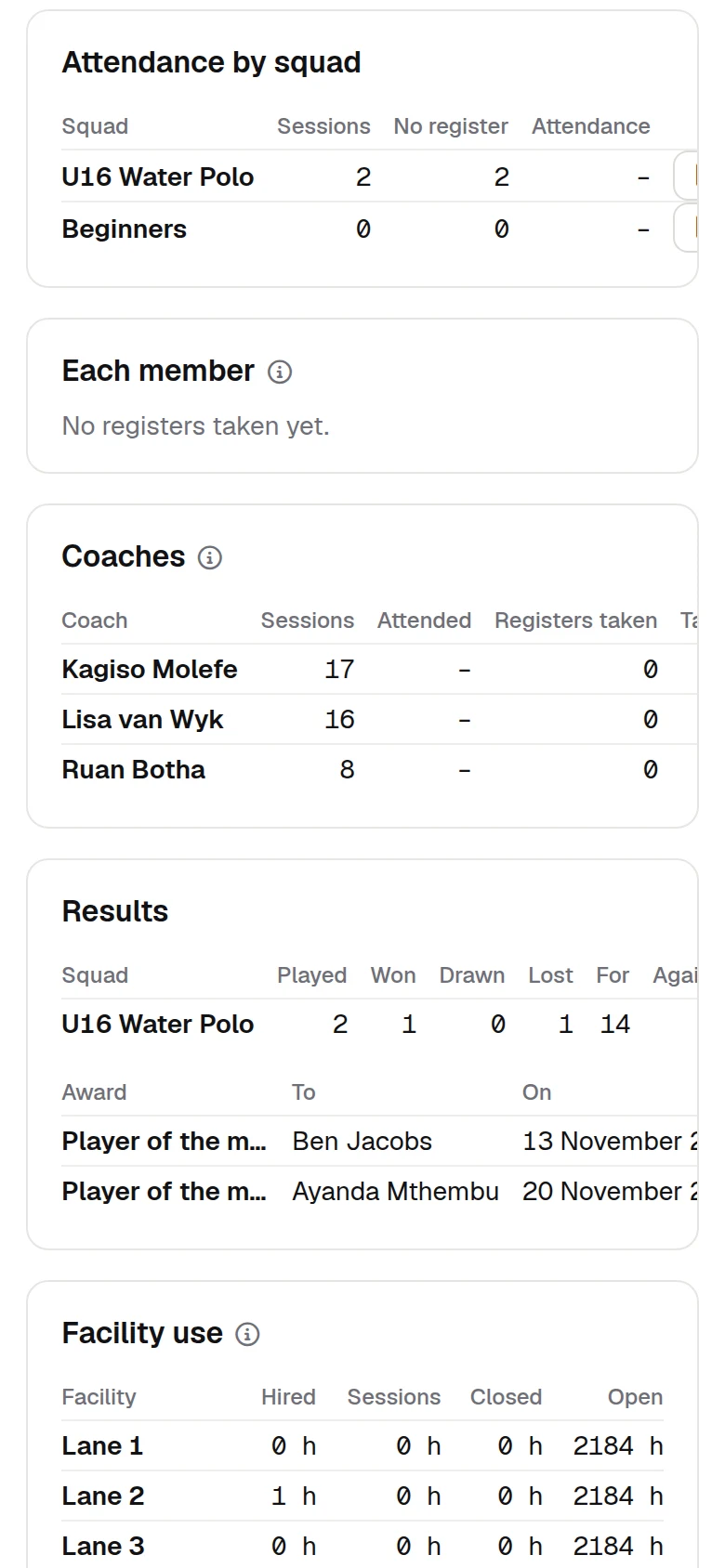
- Each client: the lowest attendance first, with why they missed (sick, injured, away or didn't come), for the ones who might need a call.
- Coaches: their sessions, how often they were there, the registers they took, and those taken late (more than a day after the session).
- Results, with Teams or Events on: played, won, drawn and lost, the scores for and against, and who got the awards.
- Facility use, Events and Memberships, when you have them: the hours hired, each event's entries, and who joined, left or is still to be placed in a group.
Owners and admins see everyone. A coach sees their own sessions, groups and people, without the facilities.
3. Export it
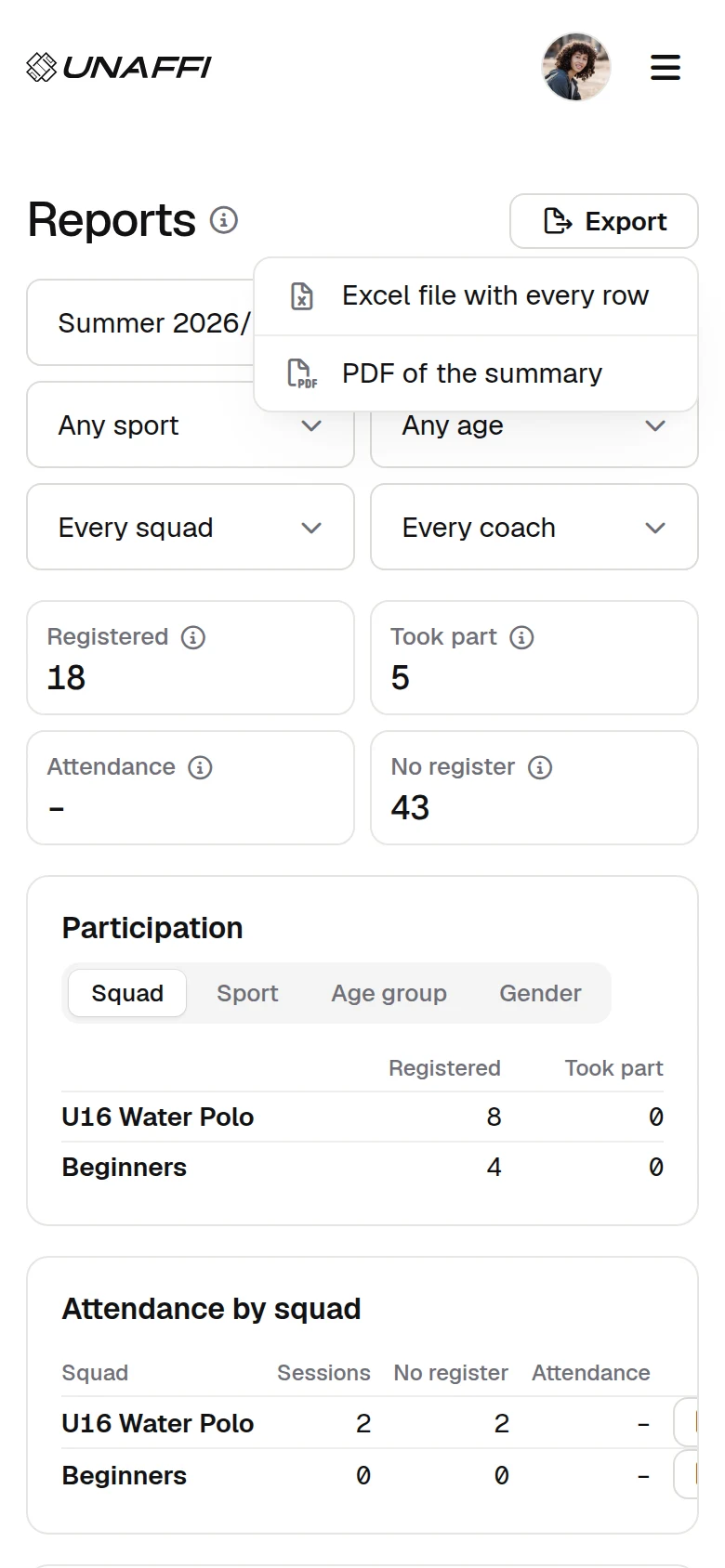
Press Export for the same filters as the page:
- Excel file with every row: a sheet for each section, with the rows behind it, such as each client's attendance and who took each register, and when.
- PDF of the summary: the numbers, with your logo at the top. It names your coaches but not your clients, so it can go to a board or a funder.
A group's Register is a PDF of its own: its people down the side and its sessions across, each marked / for there or with a letter for why not (S for sick, I for injured, A for away). Its coaches come under them, and each person's attendance is at the end of their row.
Owners and admins can also export an attendance register without Reports: under Clients, Export › Attendance makes one for the clients listed, or ones you choose, over up to 400 days, in Excel or CSV.
4. Your coaches' session reports
A coach who coached a session can say how it went, from its day on: under its register, or on the session in the calendar. Words, photos, videos, voice notes and documents all go in. Only your owners and admins read it, with the coach who wrote it, and never your clients.
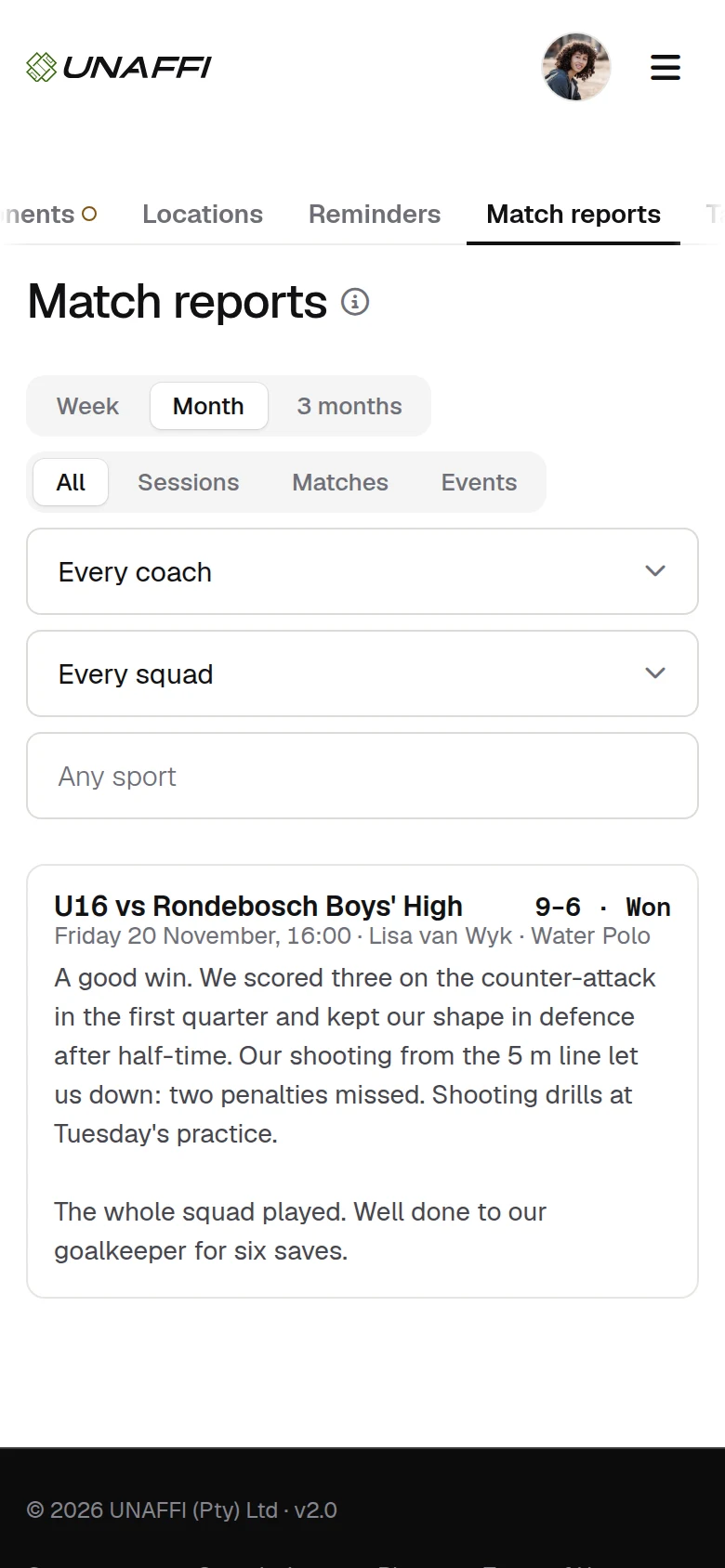
Owners and admins find every one under Schedule › Session reports (Match reports, with Teams on), the latest first. Choose the last week, month or three months, a coach, a group or a sport, or only matches or events. A match's report shows its score, and each one opens its session on the calendar.
Reports go by your terms or seasons, and their results come from your fixtures.
Questions
How do I get Reports?
Switch on Reports in Settings › Customise. Reports joins your menu, and Session reports join Schedule (Match reports, with Teams on). It works on every plan, Free included.
Where do the numbers come from?
From what you keep already: your groups and memberships, the registers your coaches take, results, hires and event entries. There’s nothing extra to fill in. Past sessions without a register are counted apart and left out of attendance.
What do my coaches see?
A coach sees the numbers for their own sessions, groups and people, and can export them too. Owners and admins see everyone, facility use, and every coach’s session reports.
Does the PDF have people’s names?
The PDF of the summary names your coaches but not your clients, so it can go to a board or a funder. The Excel file and each group’s register have your clients’ names.
Do clients or parents see session reports?
No. A session report is read by your owners and admins and the coach who wrote it, never by clients or their parents.