Fixtures and results: plan matches, record scores, share them
Plan home and away matches with a meeting time and transport, record scores and awards, and show fixtures and results on your page and in your players’ app.
· Updated
A school's first team, a club's U16s, a league side: plan their matches on the same calendar as practice, tell the players where to meet, record the score, and show it all on your page. Here's how.
1. Switch on Teams and add your opponents
Go to Settings › Customise and switch on Teams, if it isn't on: a new club or school starts with it. Then add the teams you play under Schedule › Opponents: a name, a logo if you have one, and where they play at home. An away match is at their ground unless you say otherwise.
2. Plan a match
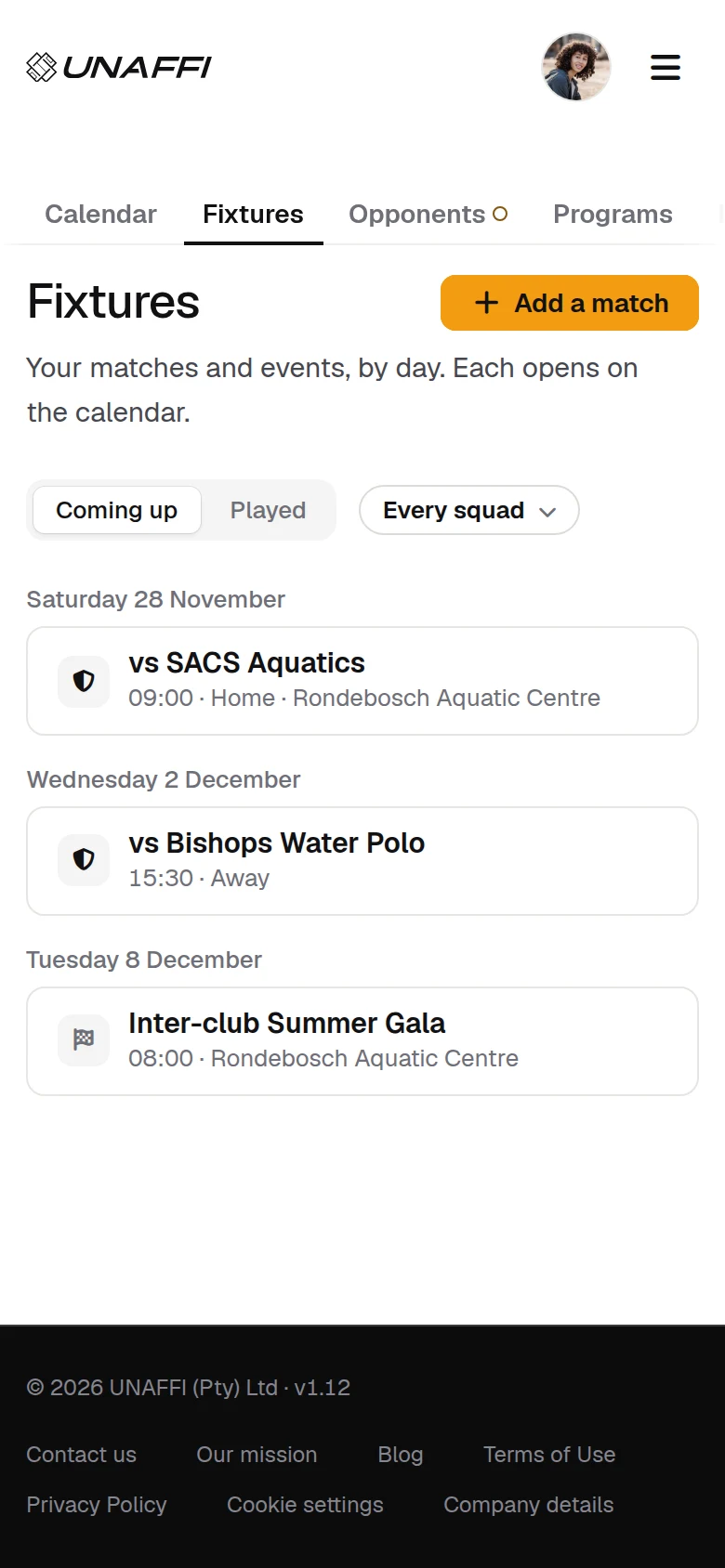
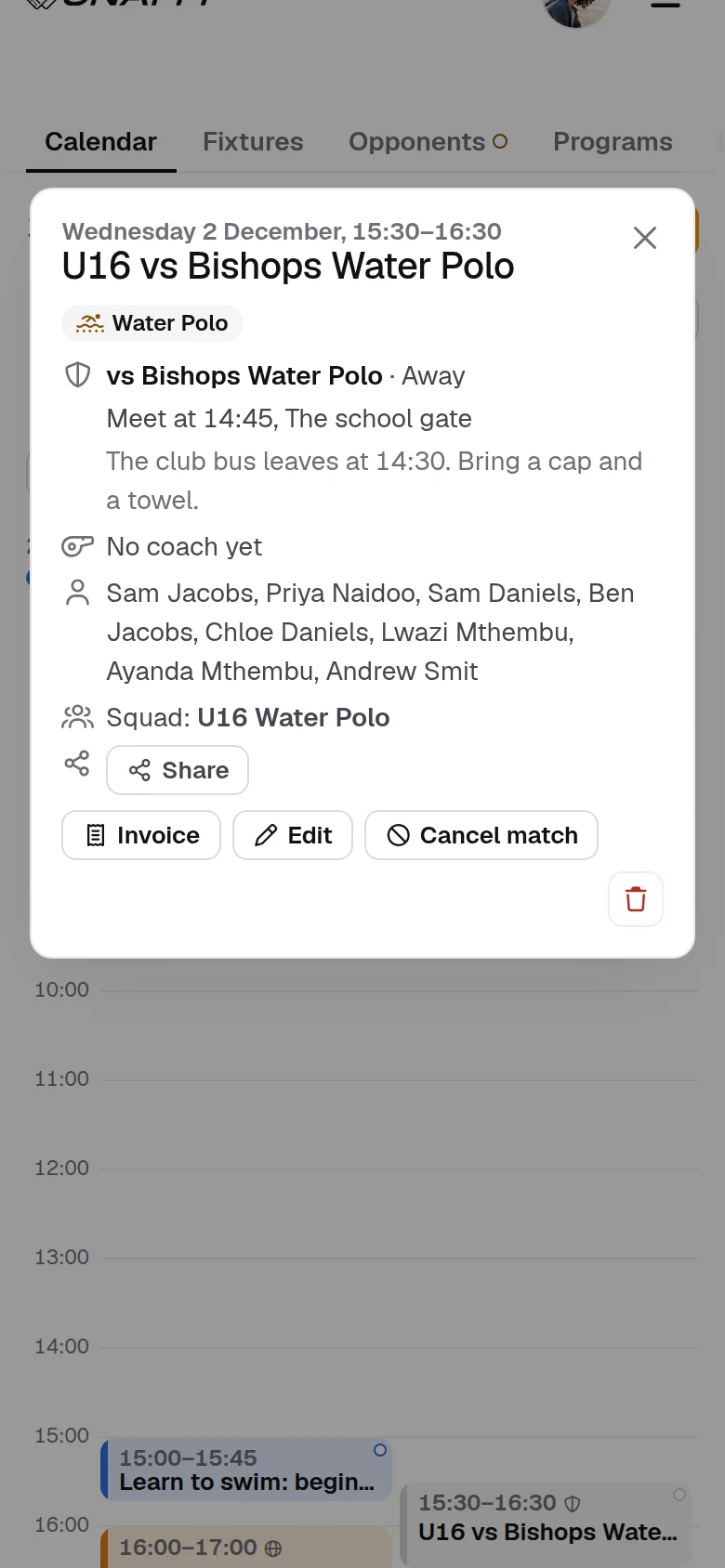
On Schedule › Fixtures, press Add a match. Choose the opponent, whether it's home, away or neutral, the team, and who's in the squad (the whole team, or some of them). Then say when the players meet (minutes before it starts), the meeting place, and the transport: "The club bus leaves at 14:30."
Playing several teams against one school on a Saturday? Choose Fixture day: one match a team, each at its own time, added together.
Everyone in the squad, or their parents, gets it in their reminders, with the meeting time and the transport. Players see their matches in the app under Schedule.
3. Record the result
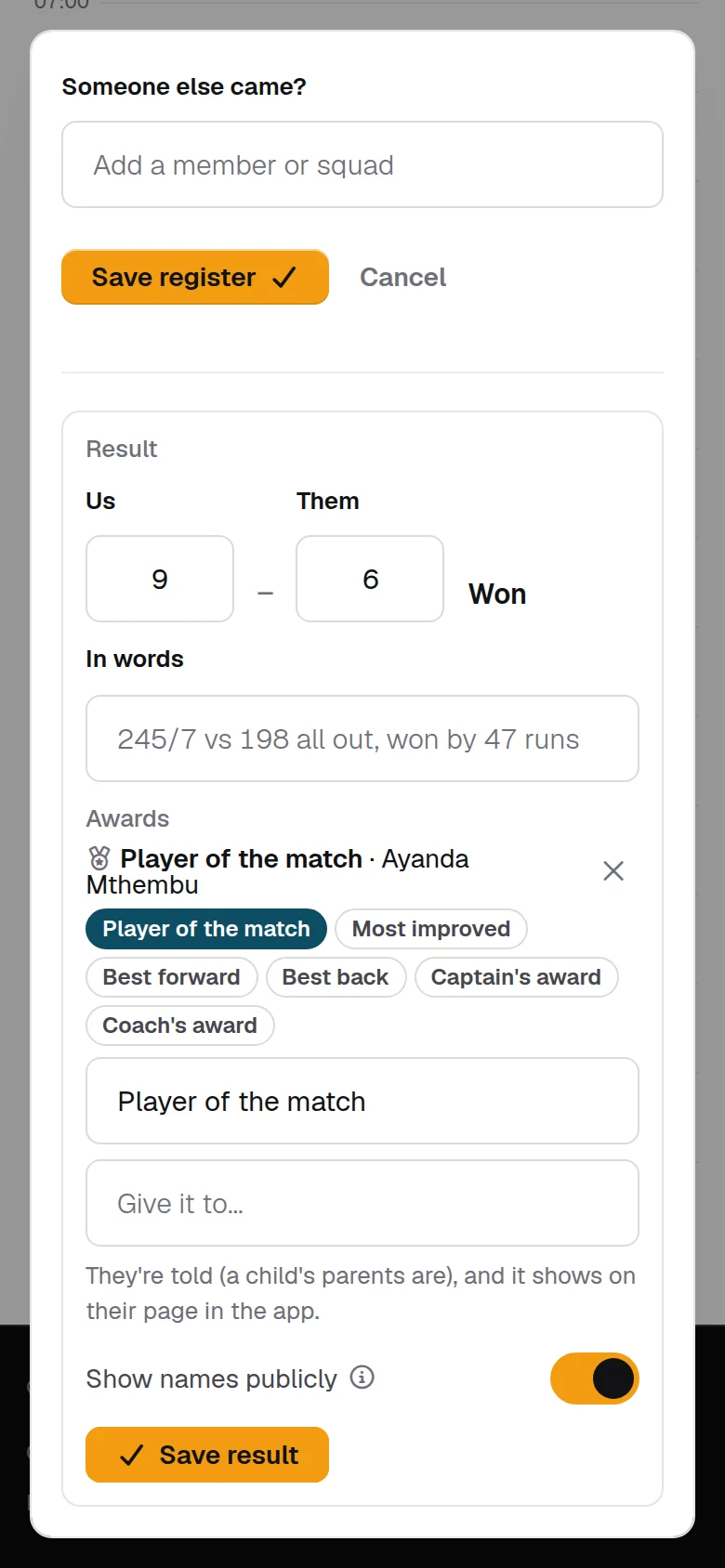
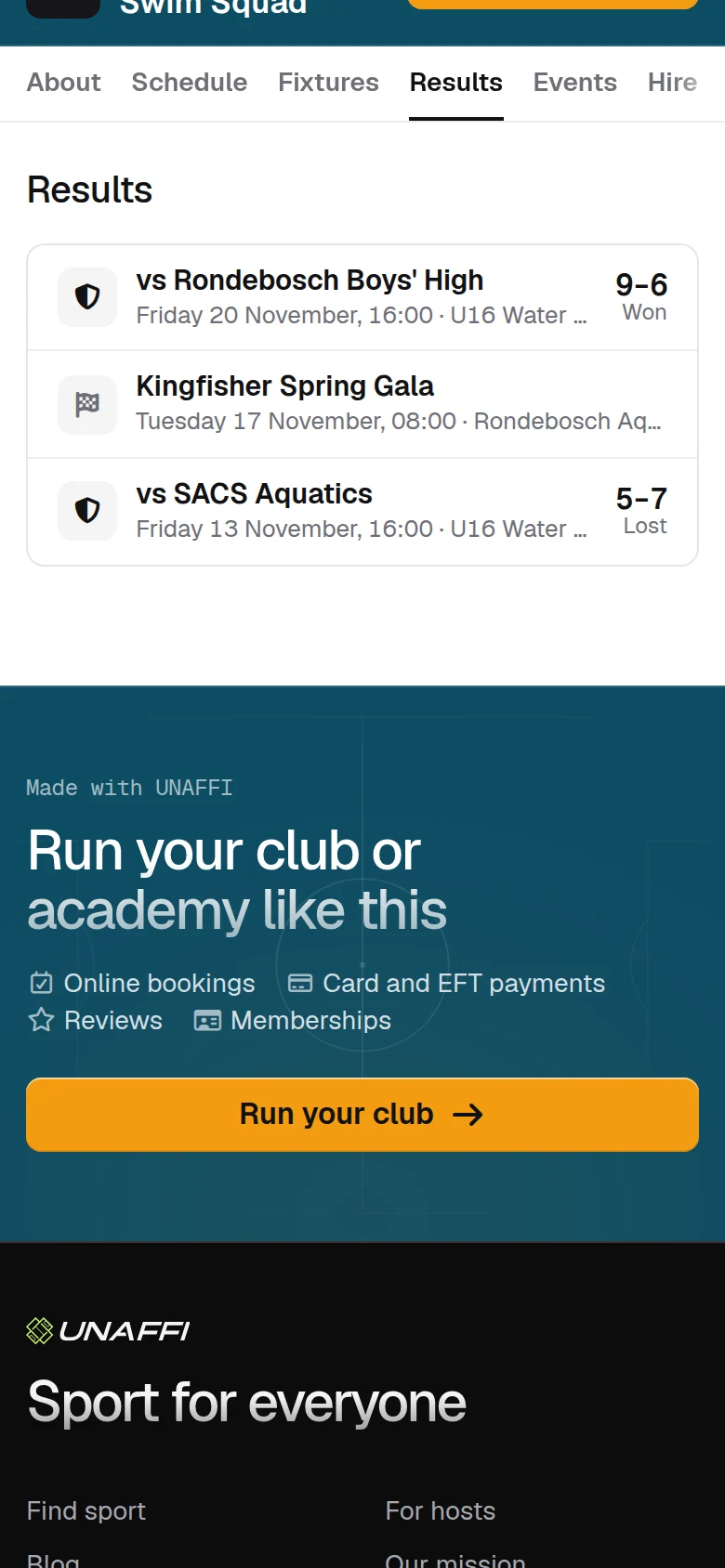
From the day of the match, open it and press Register. Tick who played, then fill in the result: your score and theirs (won, drawn or lost follows), and a line in words for sports that need one, like cricket's "245/7 vs 198 all out".
Give awards such as Player of the match, Most improved or one you name yourself, each to a player. Their parents are told, and it shows on their child's page in the app. Switch on Show names publicly to put the winners' names on your page too.
4. Fixtures and results on your page
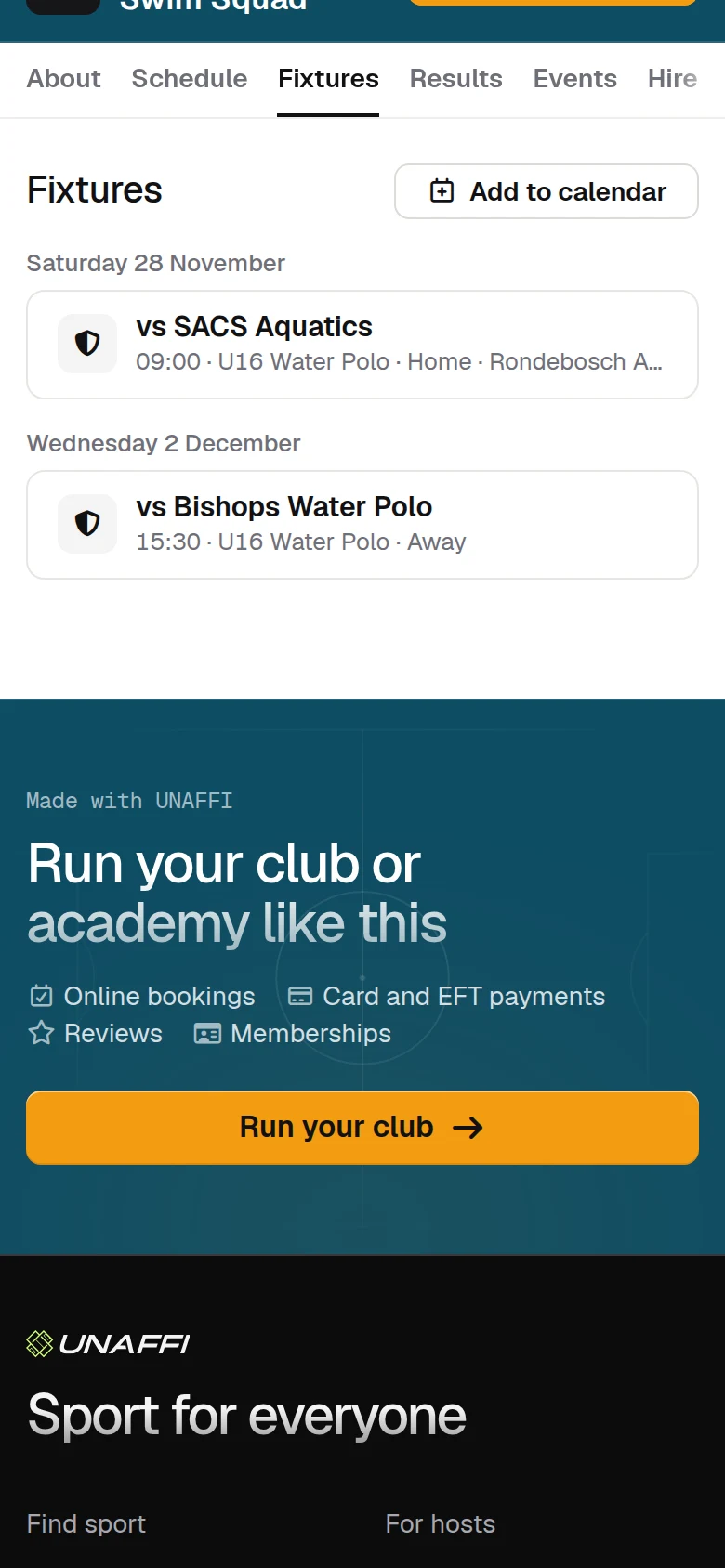
Your page gets a Fixtures tab and a Results tab once there's something on them. Parents can filter by team and press Add to calendar to get every fixture in their phone's calendar, kept up to date. Each match has its own page to share.
Running a gala, a race or a tournament instead? See how to run a sports event, with entries, tickets and times.
Questions
How do I start planning matches?
Switch on Teams in Settings › Customise. Fixtures and Opponents then show under Schedule, and Match is one of the things you can add to the calendar. A new club or school starts with it on.
Who hears about a match?
Everyone in its squad, or their parents, gets the match in their reminders with the opponent, home or away, when and where to meet, and the transport. They see it in the app under Schedule too.
Are players’ names shown on our page?
Only if you choose to. Scores always show on your page’s Results; the names of award winners show only when you switch on Show names publicly for that match.
What does it cost?
Nothing extra: fixtures, results and awards are on every plan, Free included.