Staff and roles: add your coaches and admins, and choose what each sees
Invite coaches and admins with a link, give each a role, and see how full your plan is. Coaches see only their own clients, and your staff talk in channels.
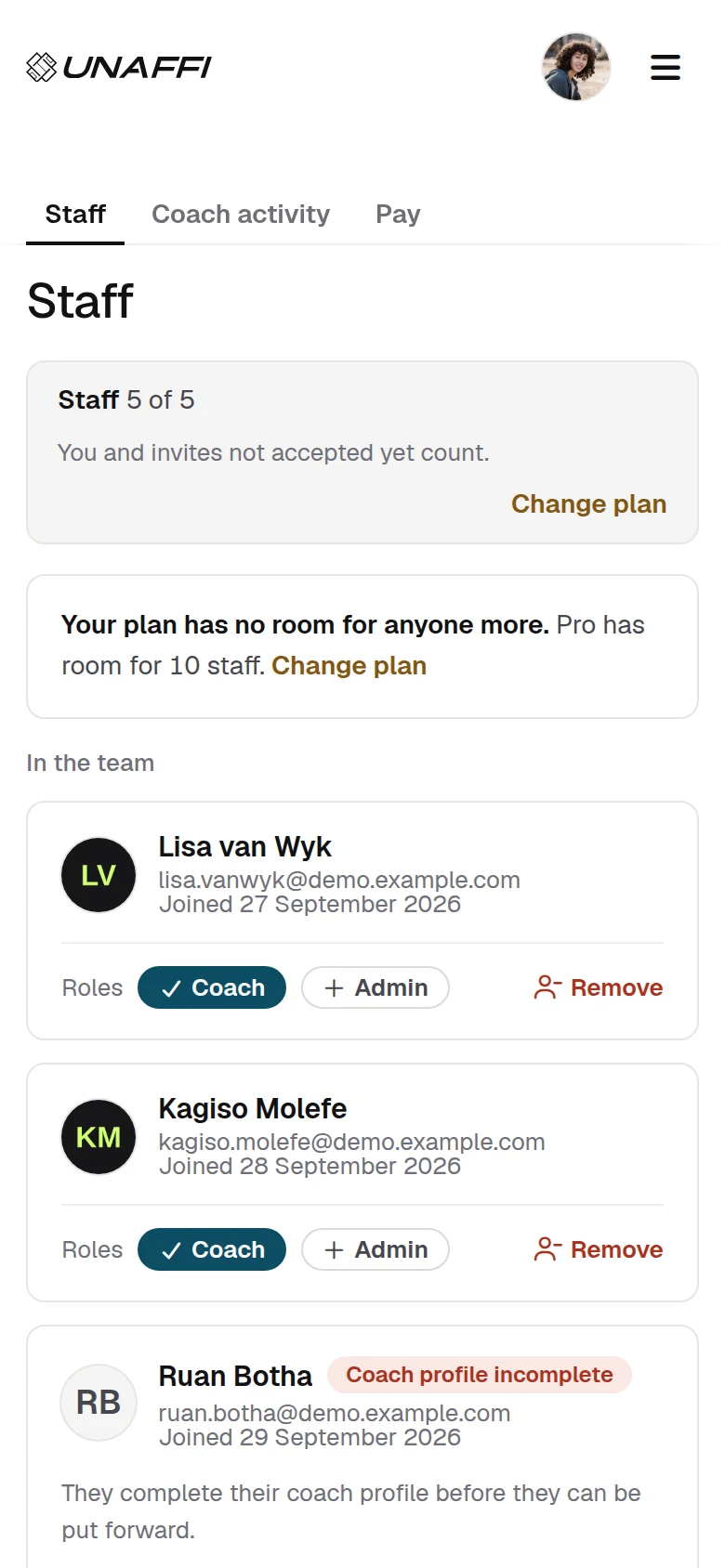
Everyone who works in your workspace is on your staff: you, as its owner, and the coaches and admins you invite. Staff in the menu is where you invite them and give each a role. On Team, Pro and Enterprise, it also shows what your coaches did, and pays them.
1. Owner, admin and coach
- Owner: whoever started it. There's one, who sees everything, invites people, changes their roles, chooses the plan and sets the bank account your clients' payments go to.
- Admin: runs it with the owner. Admins see every client, the money (invoices, memberships and payouts), campaigns and settings, and pay your coaches.
- Coach: sees their own clients and groups, and the whole calendar, but nothing about money.
Someone can be an admin and a coach, and the owner can coach too. If you call your coaches something else, like trainers, change the word in Settings › Customise.
2. How many fit
Your plan sets how many staff you can have. You count, and so do invites not accepted yet:
- Free and Solo: just you.
- Team: up to 5.
- Pro: up to 10.
- Enterprise: as many as we agree.
Staff shows how full it is, like "Staff 3 of 5", with Change plan beside it. On Free and Solo, it shows you alone, and that Team has room for your coaches and admins. See the plans.
3. Invite someone
If your workspace has no name yet, give it one first: it's what people join, and what your clients see. Then press Invite someone:
- Choose Coach, Admin or both.
- Add who it's for, if you like. Only you see it.
- Press Create invite link, and share it on WhatsApp, or copy it to send another way.
The link works once. They open it, sign in or sign up, and they're on your staff. Someone invited to coach sets up their coach profile: until it's done, their card says Coach profile incomplete. Meanwhile, the invite waits under Waiting to join, where you can send it again, or revoke it to free its place.
4. Change roles, or remove someone
Each person's card shows their roles: tap Coach or Admin to give or take one away. Press Remove to take someone off your staff: they lose access straight away, and their place is free. Anyone but the owner can also leave, from Settings.
5. What each role sees
Owners and admins see every client and group. A coach sees their own: the clients they coach, and everyone in the groups they coach. That covers their pages, messages, notes, tasks, attendance and the emails sent to them. See who coaches whom.
Everyone sees the whole calendar. Owners and admins plan it, and coaches plan the sessions they coach. On a session a coach doesn't coach, they see only their own clients' names.
Finance, a client's invoices, memberships, campaigns, forms and your page's settings are for owners and admins. The Staff list itself, with its invites and roles, is the owner's.
6. Coach activity and pay
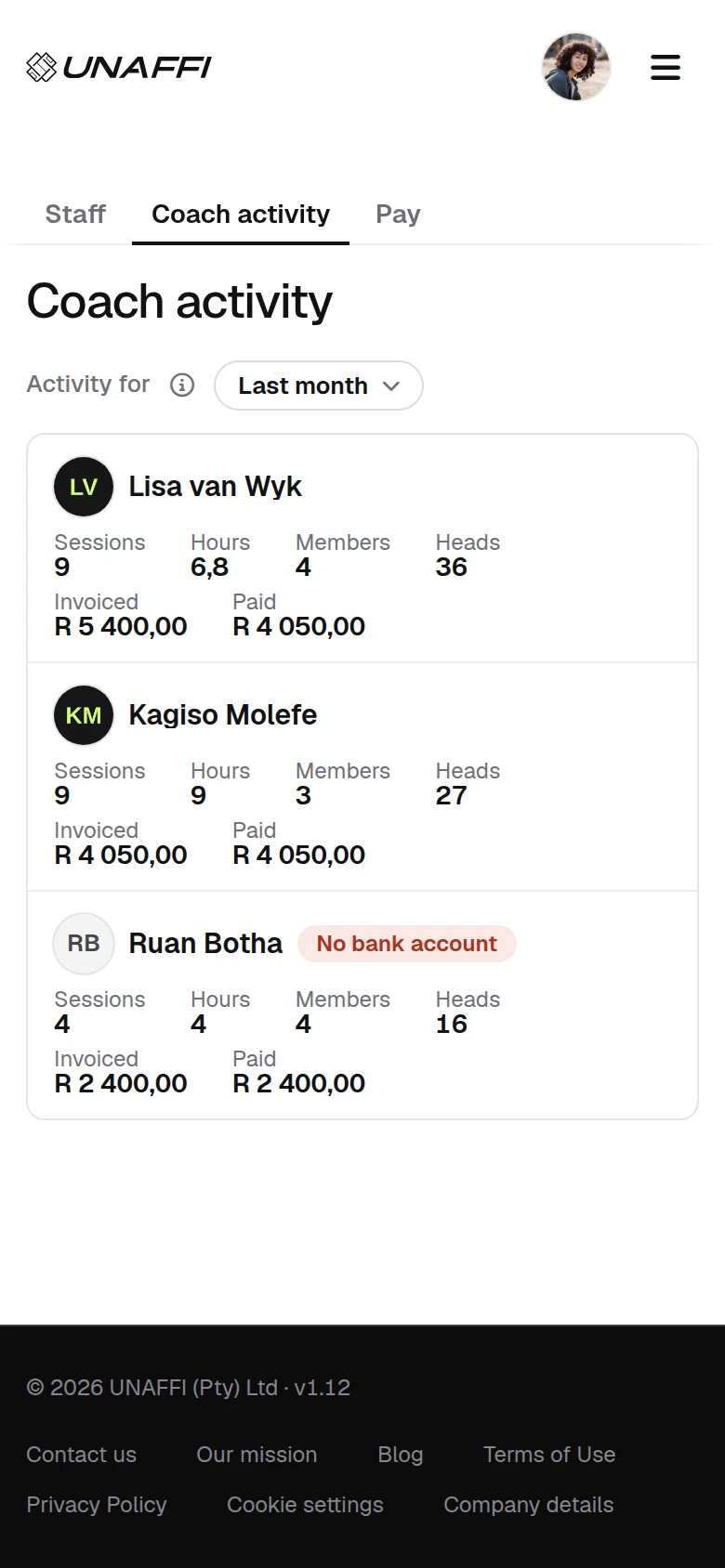
On Team, Pro and Enterprise, owners and admins have two more pages under Staff. Coach activity shows each coach's sessions, hours, clients and heads for a period, and what was invoiced and paid for their sessions. Pay turns that into each coach's invoice, and settles them all at once. See how to pay your team's coaches.
7. Staff channels
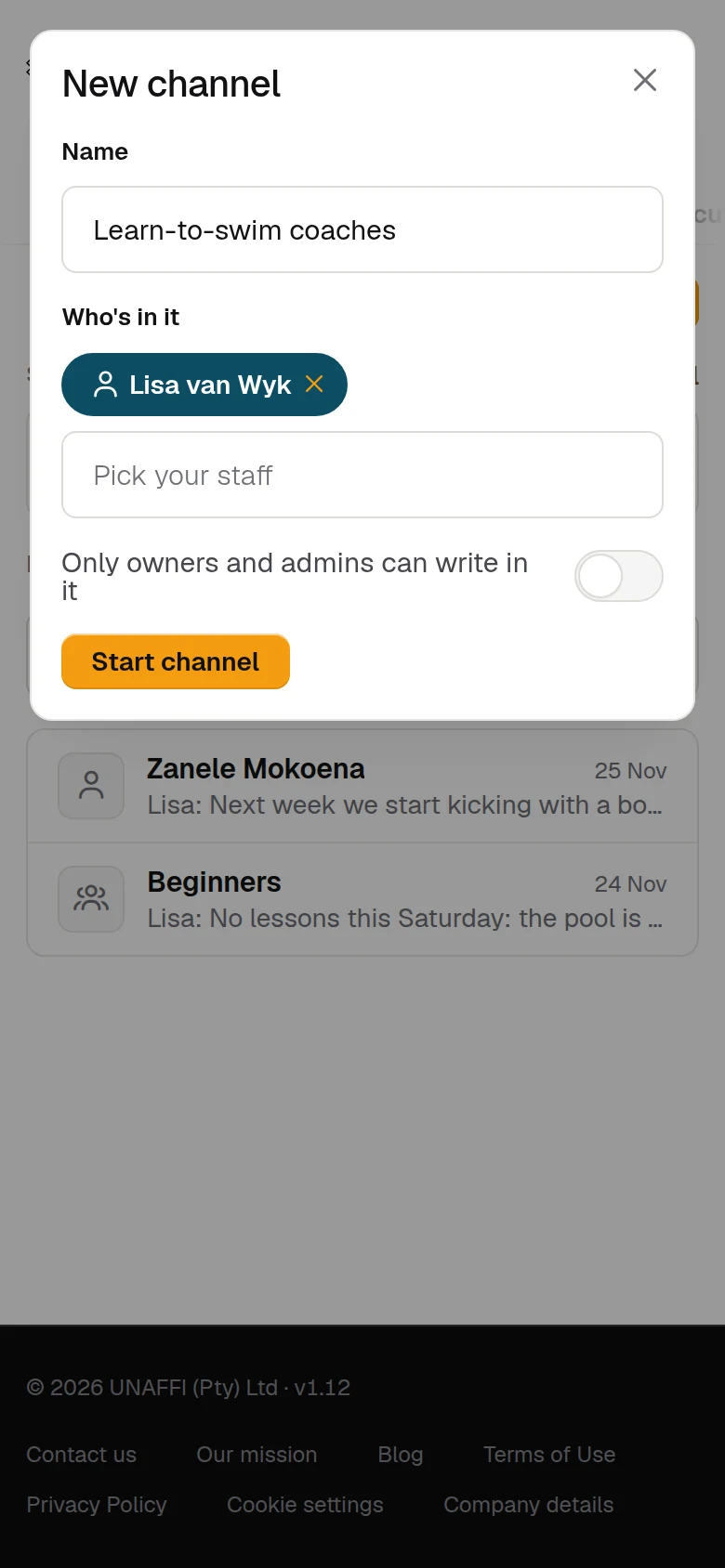
Your staff write to each other under Messages (CRM › Messages, with the CRM on), in the Staff part at the top. All staff is always there, with everyone in it. Owners and admins start more with New channel: give it a name, like "Hockey coaches", pick who's in it, and, for announcements, switch on Only owners and admins can write in it.
Coaches see All staff and the channels they're in. Owners and admins see every channel, and can change or remove one. Everyone in a channel is notified of its new messages, and your clients never see them.
Questions
How many coaches can I add?
It depends on your plan. Free and Solo are for you alone, Team has room for 5 staff, Pro for 10, and Enterprise for as many as we agree. You count, and so do invites not accepted yet.
Can a coach see all my clients?
No. A coach sees only the clients they coach, and everyone in the groups they coach. Owners and admins see every client, and choose each client's coaches on their Overview.
Can coaches see invoices and payments?
No. Finance, a client's invoices and memberships are for owners and admins. A team pays its coaches by invoice, and each coach sees theirs in their own coaching, under Finance › From teams.
What happens when someone leaves?
They lose access straight away, and their place on your plan is free again. A coach who leaves stops seeing your clients. The owner removes people under Staff, and anyone else can leave from Settings.
Is an invite link safe to send?
It can't be guessed, and it works once. Anyone with it can join, so send it only to the person it's for. If it went to the wrong place, revoke it under Waiting to join.