How to keep all your coaching clients in one place
Keep everyone you coach in one list, with their parents for under-18s, stages and timelines, duplicates merged, and each coach seeing their own clients. Free.
· Updated
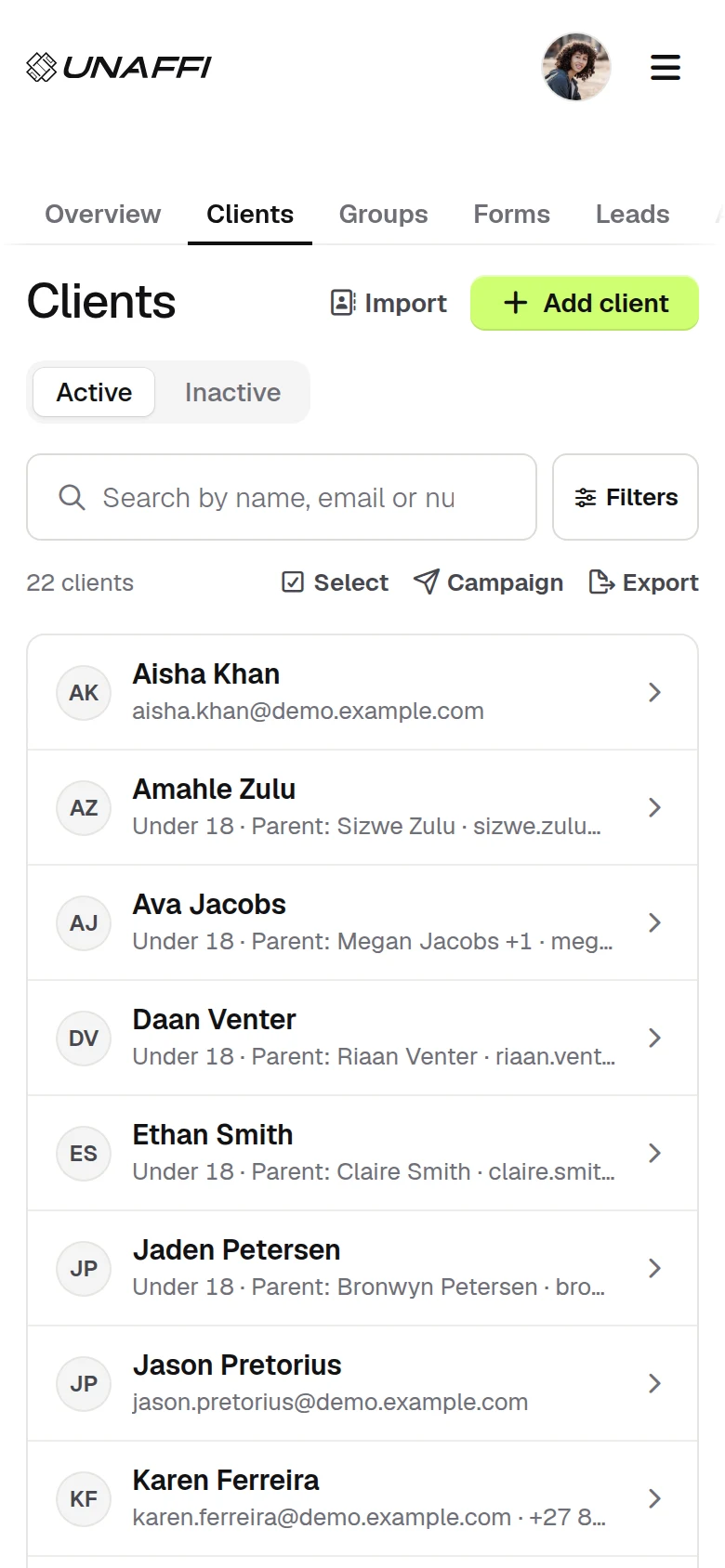
Your clients are spread across WhatsApp chats, your phone's contacts and a notebook. On UNAFFI they sit in one list: the people you met here and the ones you already had. Each has a page with their details, your messages with them, their sessions, your notes and what they owe you, with their email, number and WhatsApp a tap away.
1. Your clients at a glance
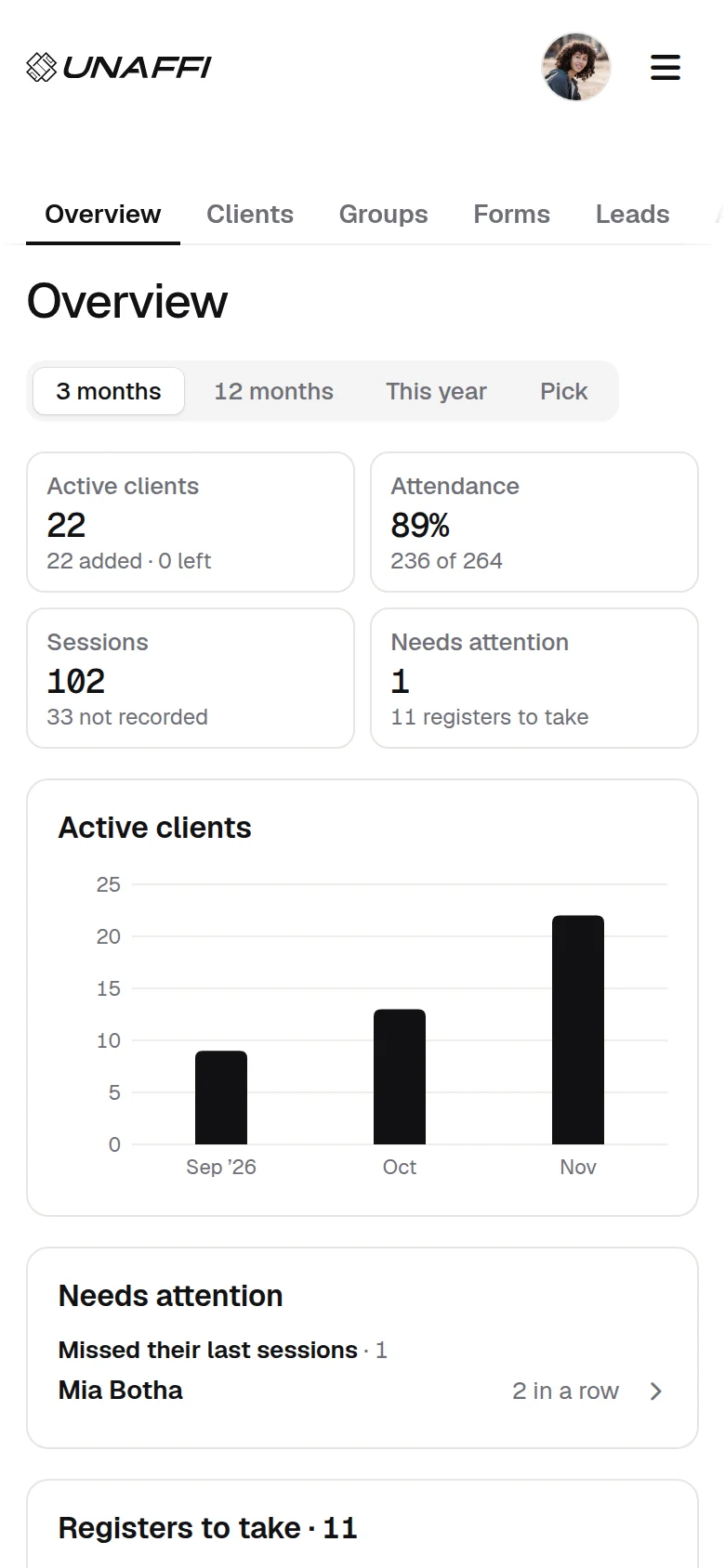
Clients › Overview, where Clients opens, shows your coaching at a glance, for the last 3 or 12 months, this year, or two days you pick:
- Active clients, how many you added and how many left, month by month.
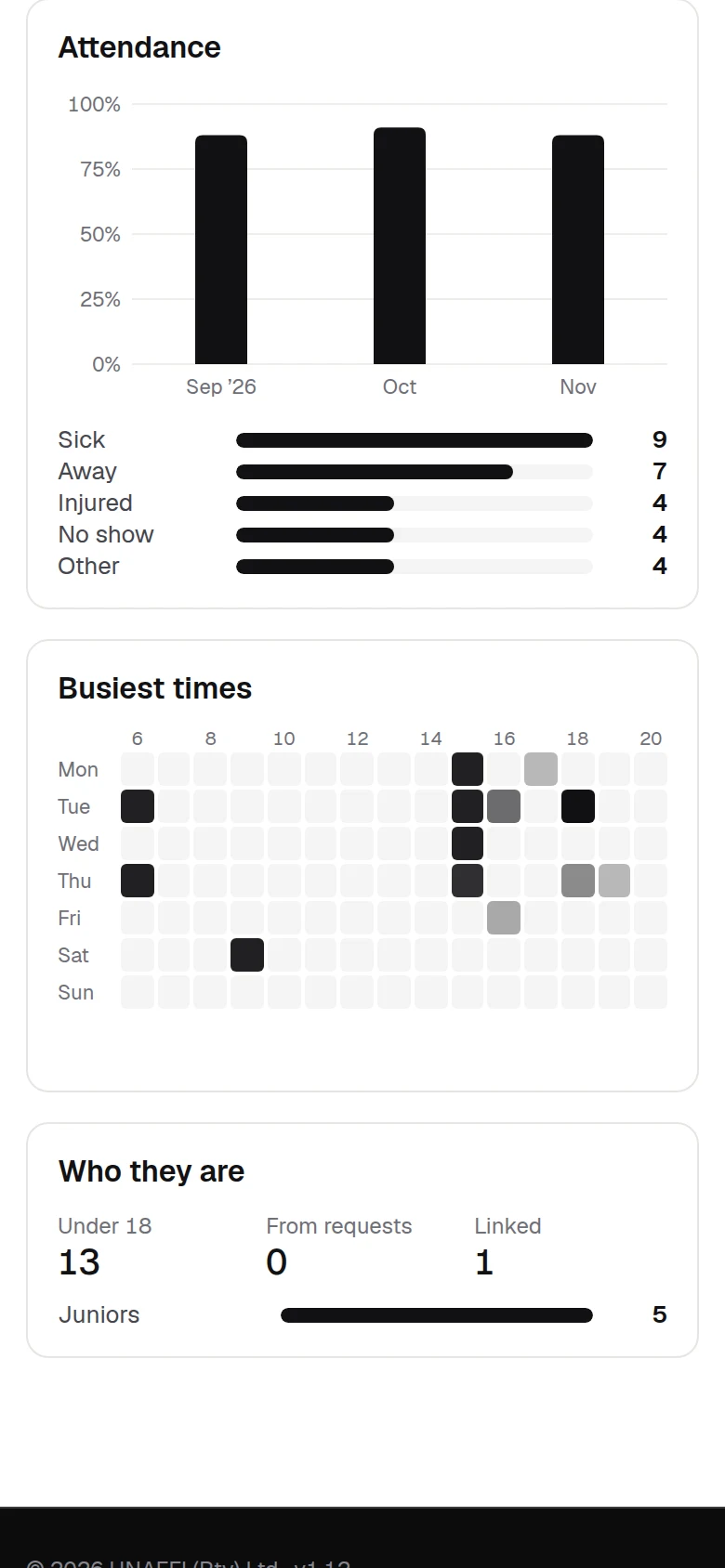
- Attendance: how many came, from the registers you take on your sessions (Register, on a session), month by month, and why the others missed: sick, injured, away or no show.
- Needs attention: clients who missed their last sessions in a row, and ones who stopped coming. A tap opens their page.
- Busiest times: when your sessions start, by day and hour.
- Registers to take, a tap from each session, and how many of your clients are under 18, came from a request or have linked their UNAFFI account.
Your full list is under it. In a team, owners and admins see every client in it, and a coach sees their own clients. There's nothing about money on it: that's in Finance.
2. Add anyone you coach
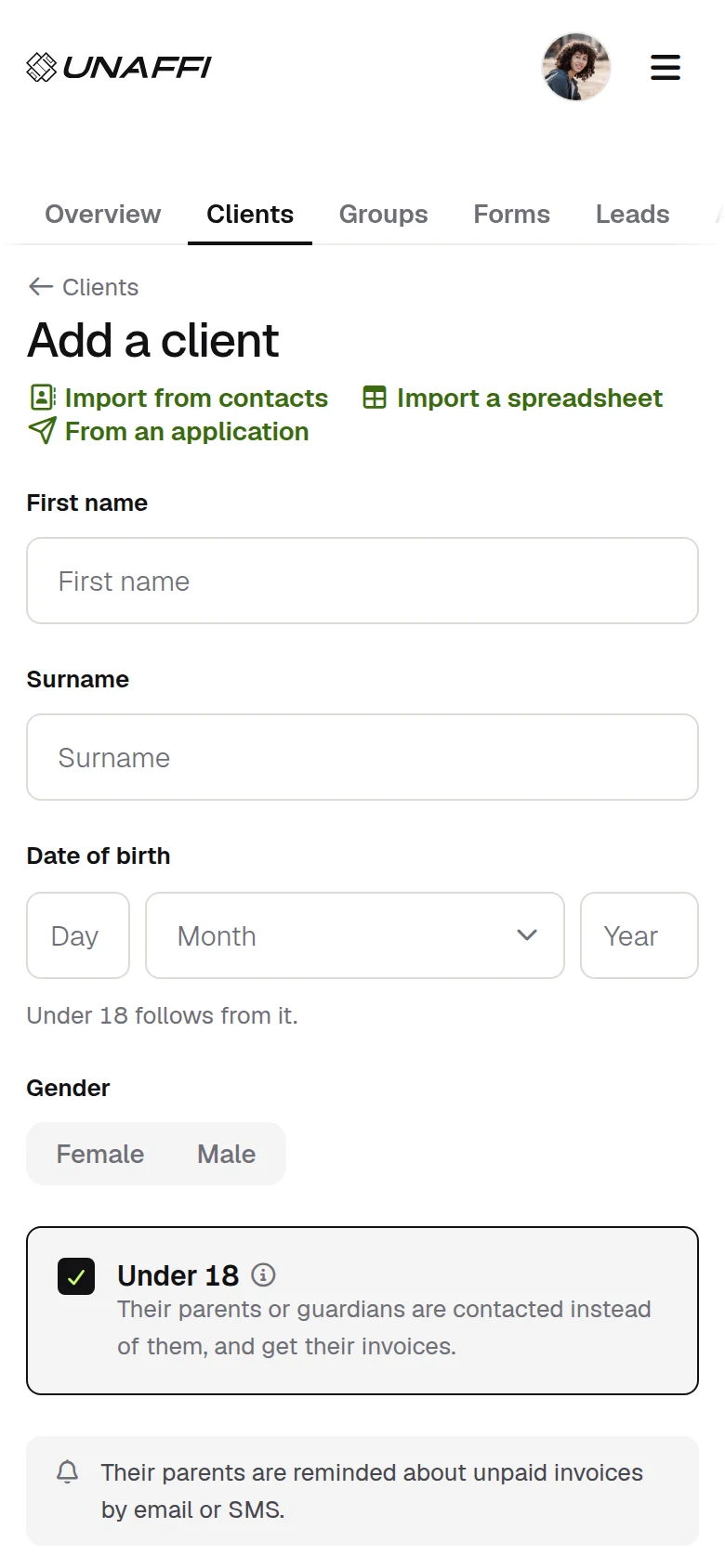
Under Clients, press Add client. Fill in what you know; you can add the rest later. Every field is optional, even their name.
- First name and surname.
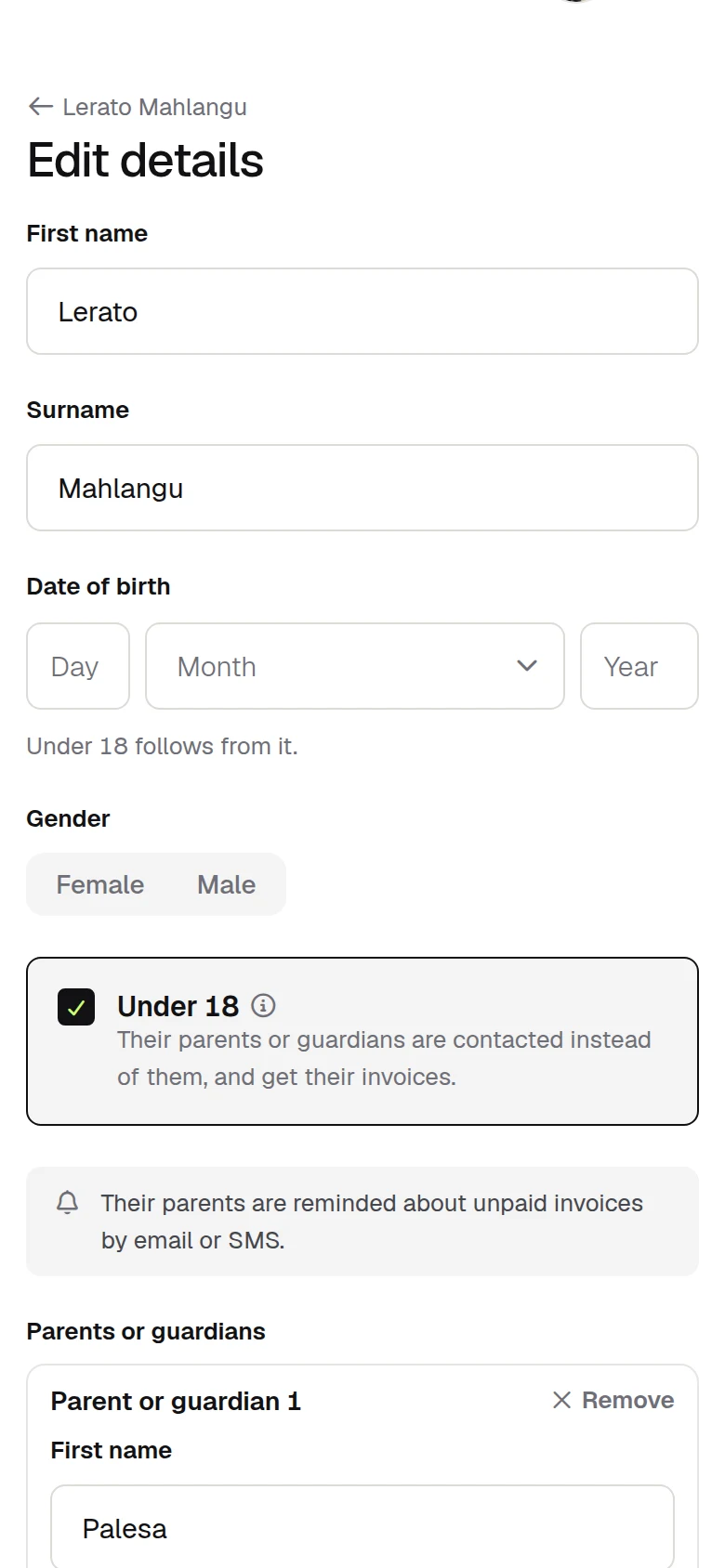
- Under 18. Switched on to start with, as so many of the people coaches coach are children. Their parents or guardians are contacted instead of them.
- Email and mobile number for an adult. Numbers from any country work; one without a country code is taken as South African.
- Parents or guardians for a child: up to 4, each with a name, email and mobile number. Invoices are billed to them, and invoices, statements and payment reminders go to them.
- Address and VAT number, for a business client or anyone whose invoices need them.
- Date of birth and gender, both optional. A date of birth sets Under 18 for you, and their page shows their age and age group (U14) under their name.
- Your own details, set up in Settings › Fields: a school's grade, class, emergency contact or medical conditions, a club's shirt size. Pick from the suggestions or build your own. Each one can be for owners and admins only, and asked when people join from your page. Parents fill in the rest for their children from their account.
Add a child with their parent or guardian's consent.
Or let them sign up themselves, with Forms and documents switched on in Settings › Customise: in Settings › Page, switch on Become a client on your page, and your page asks for their details. To ask more (their level, a medical note, a photo), choose one of your forms there, or New form… to make one on the spot. What they send waits under Clients › Forms, in From your page, where you add them as a new client, or to one you have already.
3. Met them through a request? Add them from it
Someone who asked for a coach on UNAFFI has replied to your application, accepted it or shared their contact details? Open it under Clients › Applications and press Add as a client, under Asked by. Choose:
- New client, filled in from their request: their name, or for a request about their child, them as the child's parent or guardian, so you only add the child's name.
- Existing client, if they're on your list already: you added them before they asked, say.
Either way, they're linked to their UNAFFI account. You don't need their email address or number: invoices, statements and payment reminders are emailed to the address on their account, which you don't see. If they press Share my contact details, their email and number show under Asked by: press Use on client record to fill them in. An email address of their own (or a parent's or guardian's) on their record is used instead.
The application then shows Your client, a tap from their page. To unlink them, press Unlink beside their UNAFFI account on their page. In a team, its owners and admins add clients from applications, as they're the ones who apply.
4. Everything about a client on one page
Open a client and their page has a tab for each part:
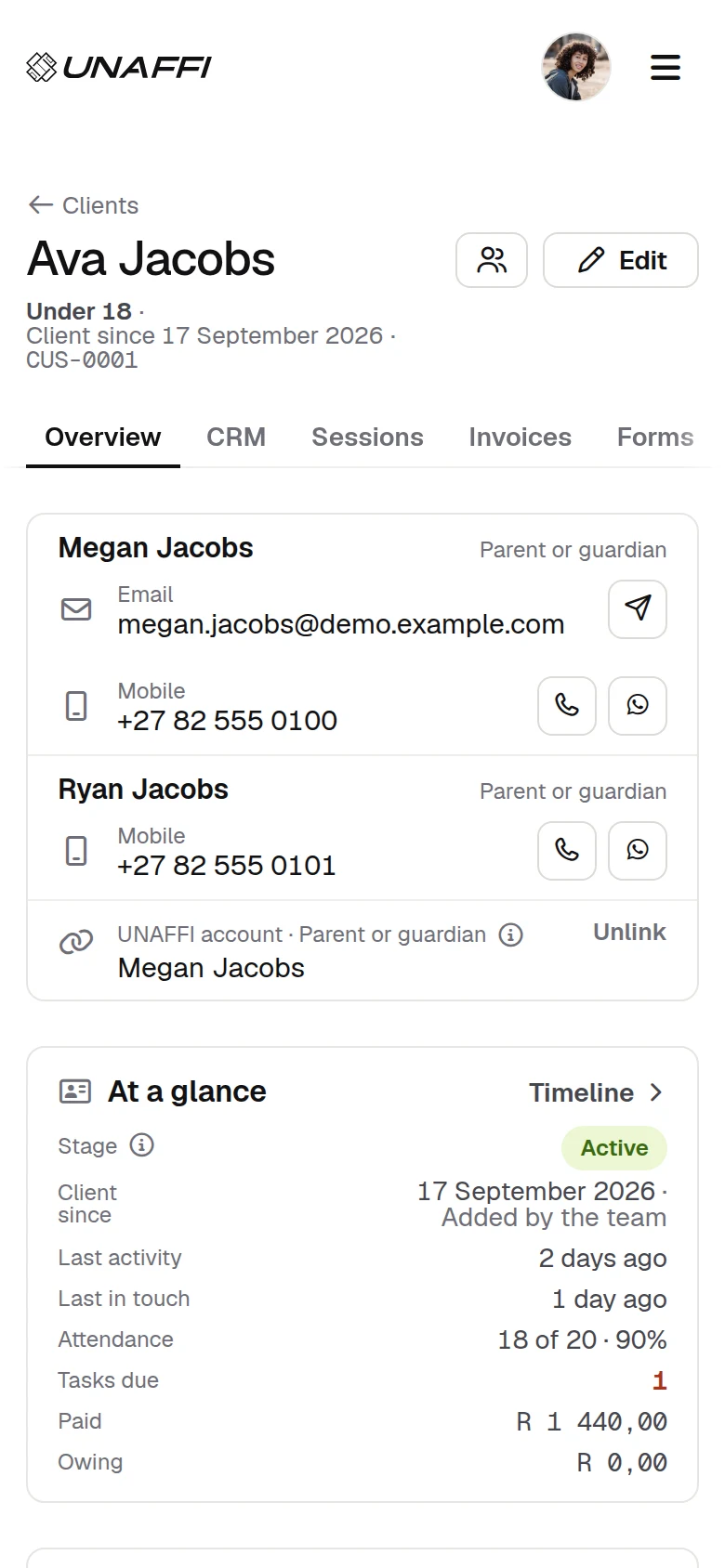
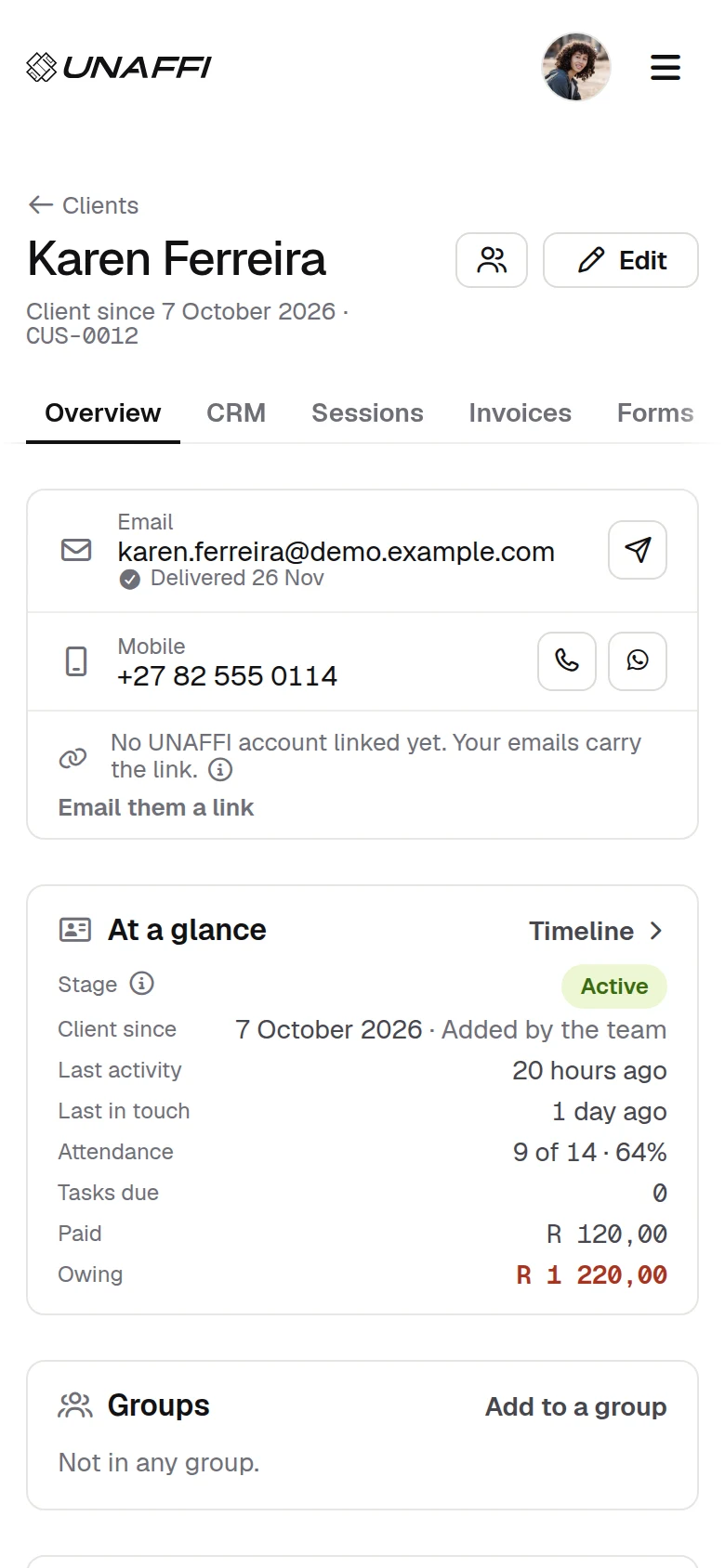
- Overview: them at a glance (their stage, since when, their attendance and what's due), then their contact details, each with a button (Email, Call and WhatsApp), and a block for each parent or guardian of a child. Then the UNAFFI accounts linked to them (with none, Email them a link sends their personal link, once a day), their coaches, their groups and their tags.
- Messages (CRM, with CRM switched on): your messages with them (or with their parents for a child), their timeline, your staff's notes about them, your private notes and, with CRM, their tasks.
- Sessions: what's coming up from your schedule, their attendance (how many they came to, why they missed the others, and who recorded it) and their results.
- Invoices (for owners and admins): what's unpaid and every invoice. See how invoicing works.
- Forms, with Forms and documents: their answers to your forms, from your page, a booking or a membership, photos and files included.
5. The CRM: stages, tasks and everything you've sent
Every client has a stage, which UNAFFI works out from their sessions, bookings and payments, so you don't have to:
- New: added in the last 30 days.
- Active: on a session, booked or paying in the last 30 days.
- At risk: missed their last 2 sessions, or nothing for over 30 days.
- Lapsed: nothing for over 90 days.
- Inactive: deactivated.
A client's Overview starts with them at a glance: their stage, where they came from and since when, when they last did something and were last in touch, and their attendance. Owners and admins also see what they've paid and what they owe. Switch on CRM in Settings › Customise for the rest: their tasks due there, and CRM in the menu, which opens on Activity. It counts your clients at each stage (tap one to list them) and shows what they've been doing lately: messages, bookings, payments and forms.
Their Timeline, beside their messages, lists everything sent to them and from them, newest first: every email (tap one to read it as it was sent), every notification to their UNAFFI account, messages, bookings, invoices, forms, notes and tasks. Tap the kinds above it to see only those. Your notes about them are beside it, under Notes and Private notes, and a group's are on the group's own page.
With CRM, a task is something to do about a client or a group by a day, like "Call about next term". Add one on their Tasks, or under CRM › Tasks in the menu for anyone. It's yours unless an owner or admin gives it to another coach, and whoever it's for gets a notification at 07:00 on the day. Tick it off when it's done.
6. In a team, each coach sees their own clients
Every client, and every group, has one or more coaches. A coach sees only their clients: the ones they coach, and everyone in the groups they coach. That covers everything about them: the list, their pages, messages, notes, tasks, attendance, results, forms' answers and the emails sent to them. Owners and admins see every client.
- Who coaches whom: whoever adds a client, or makes a group, coaches it. A client who books a public session gets that session's coaches, and one added from an application gets the coaches put forward on it.
- Changing coaches: owners and admins add or remove them on a client's Overview, on a group's Members tab, or for many clients at once: press Select on the list, pick them and press Add coaches.
- No coach: clients without one are marked No coach, and only owners and admins see them. Filters finds them, or any coach's clients.
Everyone still sees the whole team calendar. On a session a coach doesn't coach, only their own clients' names show; on the sessions they coach, they see everyone, to take the register. A coach who leaves the team stops coaching its clients.
7. Their own UNAFFI account
Your invoices, statements and session emails each carry a personal link. When a client or parent opens it and signs in (or signs up) with that email address, their account is linked. Your messages with them, their sessions and your invoices (to pay several at once) are then in their account, under Schedule, Messages and Invoices, with you under Me › Coaches. Not linked yet? Press Email them a link on their page. Either side can unlink at any time: you beside their account, they under Me › Coaches.
8. Did your email arrive?
Their Timeline shows everything you've emailed them or their parents (invoices, reminders, statements, session emails), each marked Delivered once their email provider accepted it, or Not delivered with the reason. Under each address on their page you'll see when an email last arrived, or a warning that emails aren't getting through. The client list marks them too, and Emails not delivered above it lists them all, so you can put the addresses right. Delivered doesn't mean read: it may still be in their spam folder.
9. Find anyone in seconds
The list is in alphabetical order. Search by name, email address or number, parents' and guardians' included, so typing a mum's name finds her child. Numbers match with or without spaces, and as you'd type them locally: "082…" finds "+27 82…".
10. Groups, like a squad
Under Clients › Groups, make a group (your Juniors, say) and add its clients. Pick it when you plan a session to add everyone in it at once, or when you make invoices to give each of them one, and filter your schedule by it. A group's page has its Members (its coaches and clients), its Messages (its messages, which all its clients see, and its notes and private notes, with tasks when CRM is on) and its Sessions. A client's page shows their groups, and you can filter your list by them.
11. Tags, to sort clients your way
Tag clients by age group, level, or anything else you sort them by, such as U12, Beginners or Holiday camp. Press Select on the list, pick clients (or select them all), and press Tag; or press Add tags on a client's page. A client can have up to 20 tags, and they show on the list. Anyone on your team can tag clients; owners and admins add new tags, and rename, merge or delete them from Manage tags.
12. Filter your list
Press Filters above the list to open every filter in one panel, beside the list on a computer and full screen on a phone. Under Who they are you pick stages, groups, tags and memberships, and owners and admins can pick coaches (or No coach). Under Sessions you find who had a session lately, who has one coming up, who stopped coming, who missed their last two and who never had one, and who had sessions with a coach, at a location, with a session tag or in a program. Under Details you pick their age, age group, gender and sport, the terms or seasons they're registered for, your own details' answers, whether they've linked a UNAFFI account, when they were added and whose emails weren't delivered, and owners and admins can find who owes money.
The list changes as you pick, and Show (with how many) closes the panel. Clients must match every filter, and any of what you pick within one, so "Tagged U12 or U14" and "Had a session in the last month" together finds the juniors who are coming. Each filter shows as a chip above the list: tap it to change it, or press × to take it off. Owners and admins can save filters they use often as an audience at the top of the panel, like "Under 12s at risk", to pick them again for the list or an email.
13. Send campaigns to your clients
With CRM switched on, owners and admins can write to many clients at once from CRM › Campaigns, or from Campaign on the list. Write a subject and a message, attach up to 3 photos or documents, and send it now or schedule it for a day and time. Clients under 18 have it go to their parents, and UNAFFI accounts linked to a client get it too, each person once. Who it goes to is worked out again when it's sent, so clients who match your filters by then get it. Press Send me a test to see it first.
Choose how it goes under Send by: Email, Push or Both. A push reaches people whose UNAFFI account is linked to the client and who have notifications on, and tapping it opens your message as a page. With Push, everyone a push can't reach gets the email instead, so nobody misses it.
It comes from your name, and replies go to the address you choose, or to the owner. Every email has an Unsubscribe link that stops your campaigns to that person. Your invoices and reminders still reach them. Afterwards you'll see how many people it reached, how many by push and how many emails were delivered, and each client's timeline shows it too.
14. Import them from your phone or a spreadsheet
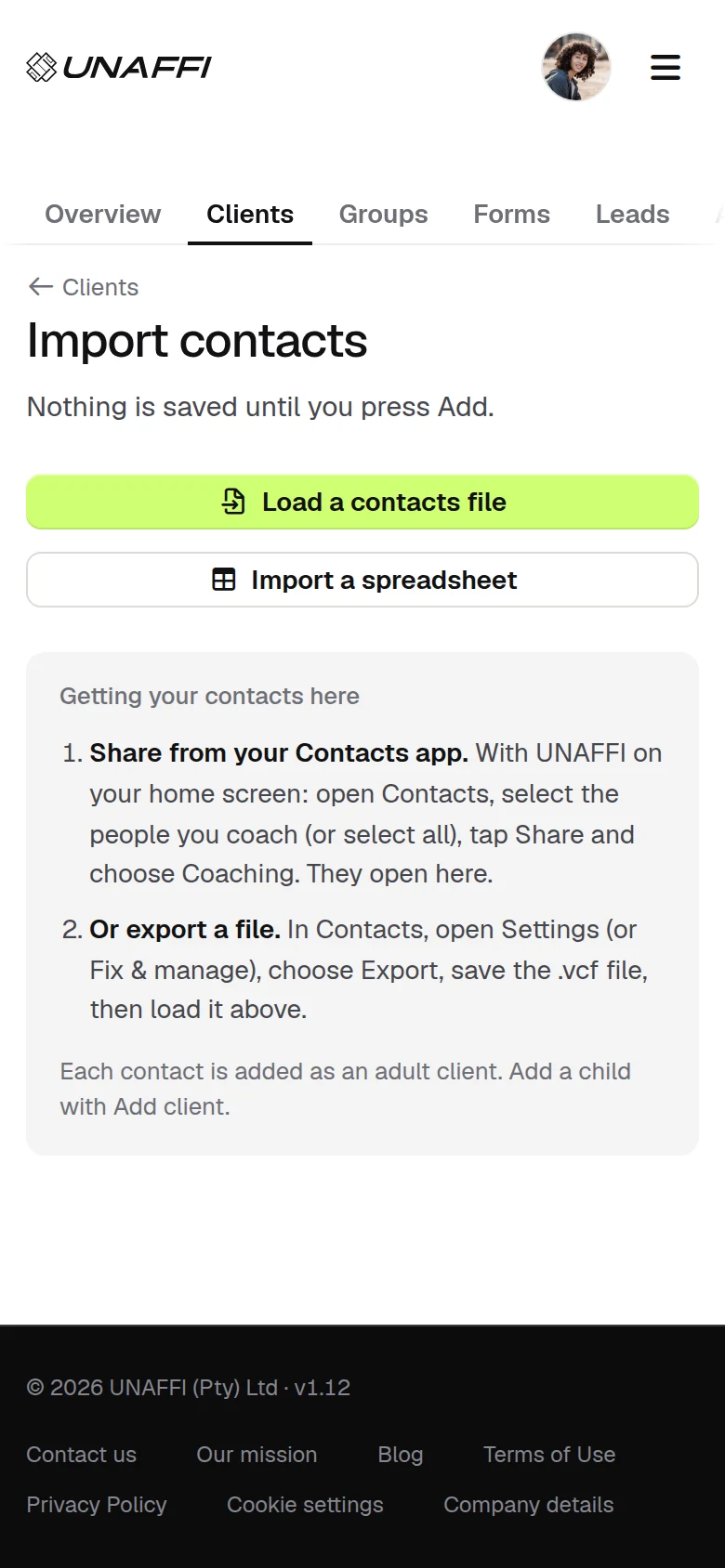
Already have your clients in your phone, or in a spreadsheet? Press Import on Clients. There are four ways:
- Load a contacts file (.vcf), exported from an Android phone, an iPhone, iCloud or Google Contacts. The page shows you how for your phone.
- Share from your Contacts app on Android, once UNAFFI is on your home screen: select the people you coach, tap Share and choose UNAFFI.
- Choose from your contacts, in Chrome on Android, where it can.
- Import a spreadsheet (CSV or Excel, for owners and admins): match each column to a client detail, or start from our template. A row with a parent's details comes in as under 18, and its groups are made for you. Dates of birth, gender and your own details come in too, and a Registration column (a membership's name) puts each person on it and in the group they fit.
Then tick the people you coach and press Add. Nothing is saved or sent anywhere until you do, and only the people you choose are added. Anyone who's a client already is marked, and so is anyone who's already a client's parent or guardian. Contacts come in as clients over 18, with their own details: to add a child, use Add client, or a spreadsheet with their parents.
15. Export your list
Owners and admins press Export on the list for Excel or CSV of the clients shown (active or inactive, filtered or searched), with their parents, groups, tags, memberships, date of birth, age group, gender and your own details. Attendance exports a register instead: a row for each session and a column for each client and coach, over up to 400 days, with the totals in Excel.
16. Or add them as you go
Picking clients anywhere (a session, its register, an invoice, a group) and they're not on your list? Type their name and choose "add as a new client". Say whether they're under 18 (it's on to start with), and add the rest on their page later.
17. Merge two records of the same person
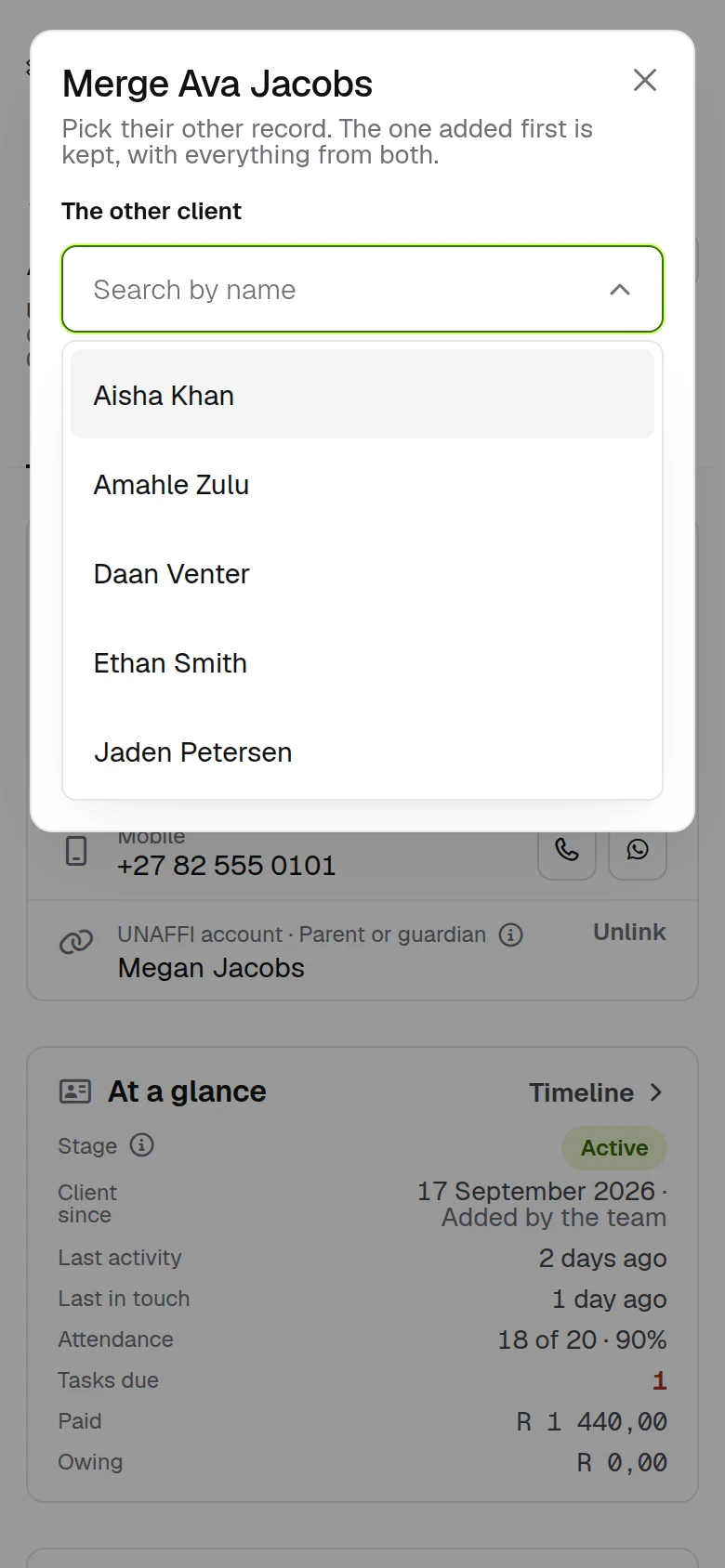
Someone who books, joins or fills in a form can become a new client although you had them already. When two clients look like the same person (the same name, and the same email address, mobile number, date of birth or parent), their page tells owners and admins: "Might be the same as …", with Merge. Or press Merge with… on a client's page and pick the other.
Before you merge, you see which record is kept (the one added first), how it will read after, and what moves across to it: sessions, groups, bookings, invoices, memberships, results, notes, tasks, forms, messages and linked accounts. Merging can't be undone.
18. Deactivate, don't delete
No longer coaching someone? Press Deactivate client on their page. They come off your list, the sessions from now on and their groups, and everything about them is kept, past sessions and invoices too. They're under Inactive if you need them, and Reactivate brings them back to your list (add them to sessions and groups again as you need).
19. Private, and yours
Only you see your clients and their details. Your clients don't need accounts: they see what you send them by a link or, if they link their UNAFFI account, your messages, their sessions and your invoices. Your notes and private notes are never theirs to see. Someone you add from their request gets your invoices, statements and reminders at their account's address, which you don't see unless they share it. We only contact them when you send something, with payment and session reminders if you turn them on, and when a session changes after its reminder. A child's own email address and number aren't kept: their parents' or guardians' are. Read more in our privacy policy.
Coaching for a club or academy? Its owners and admins see all its clients, and each coach sees their own. Your own coaching's clients stay yours.
- For hosts
- Clients
- CRM
- Tasks
- Dashboard
- Attendance
- Parents
- Groups
- Squads
- Tags
- Filters
- Email clients
- Import
- Export
- Linked accounts
- Coaches
- Teams
- Campaigns
- Privacy
Questions
Do my clients need a UNAFFI account?
No. They see what you send them by a link: an invoice or a statement. If they link their UNAFFI account from one of your emails, they read and answer your messages, and see their sessions and your invoices in their account. We only contact them when you send something, and with payment and session reminders if you turn them on.
Can I add someone I met through a request on UNAFFI as a client?
Yes, once they've replied to your application, accepted it or shared their contact details. Open the application and press Add as a client: they're added with what their request says, or linked to a client you already have. You don't need their email address: invoices, statements and payment reminders go to the address on their UNAFFI account. If they share their details, press Use on client record to add them.
Can I add children as clients?
Yes, with their parent or guardian's consent. Switch on Under 18 (it's on to start with) and add up to 4 parents or guardians. A child's own email address and number aren't kept: their parents' or guardians' are, and invoices go to them.
Can I import my clients from my phone?
Yes. Load a contacts file exported from your phone, Google Contacts or iCloud, share contacts straight from Android's Contacts app, or pick them in Chrome on Android. Owners and admins can also import a spreadsheet (CSV or Excel), children and parents included. Nothing is saved until you choose who to add.
What happens when I deactivate a client?
They come off your client list, and everything about them is kept: their details, messages, notes and invoices. Bring them back with Reactivate at any time. Nothing about a client is ever deleted.
What if someone is on my list twice?
Merge them. A client's page tells owners and admins when another looks like the same person, with Merge, or press Merge with… and pick the other. The one added first is kept, and everything from the other moves across to it. Merging can't be undone.
In a team, can every coach see every client?
No. A coach sees only their own clients: the ones they coach, and everyone in the groups they coach. Owners and admins see every client and choose who coaches whom. Clients with no coach are seen only by owners and admins.
Can I email all my clients at once?
Yes, with CRM switched on in Settings › Customise. Owners and admins write a campaign under CRM › Campaigns and pick who gets it with filters: tags, groups, memberships, sessions lately, or clients picked one by one. It goes by email, push or both, now or at a time you choose. Parents get it for clients under 18, each person once, and everyone can unsubscribe from your campaigns while still getting your invoices and reminders.
Does it cost anything?
Your client list is on every plan, Free too. Plans differ in how many active clients they have room for: 5 on Free, 100 on Solo, 400 on Team, 800 on Pro, and what we agree on Enterprise. Inactive clients don't count, and reaching the limit gives you a week to make room.