How to set up a coach profile that wins you clients
Your public coach page at your own link: your sports, areas, bio, qualifications, photos and reviews. Found on Find sport and with every application. Free.
· Updated
When someone gets your application, the first thing they do is open your profile. It's a public page at your own link, like unaffi.com/c/thandi, with your sports and towns, how you coach, your qualifications and photos, and what the people you've coached say about you. It's yours as a person, so it goes with you to every club, school or academy you work with. Your prices and the sessions people book are on your coaching's own page. Here's what's on your profile, how to fill it in, and who sees it.
1. What's on it
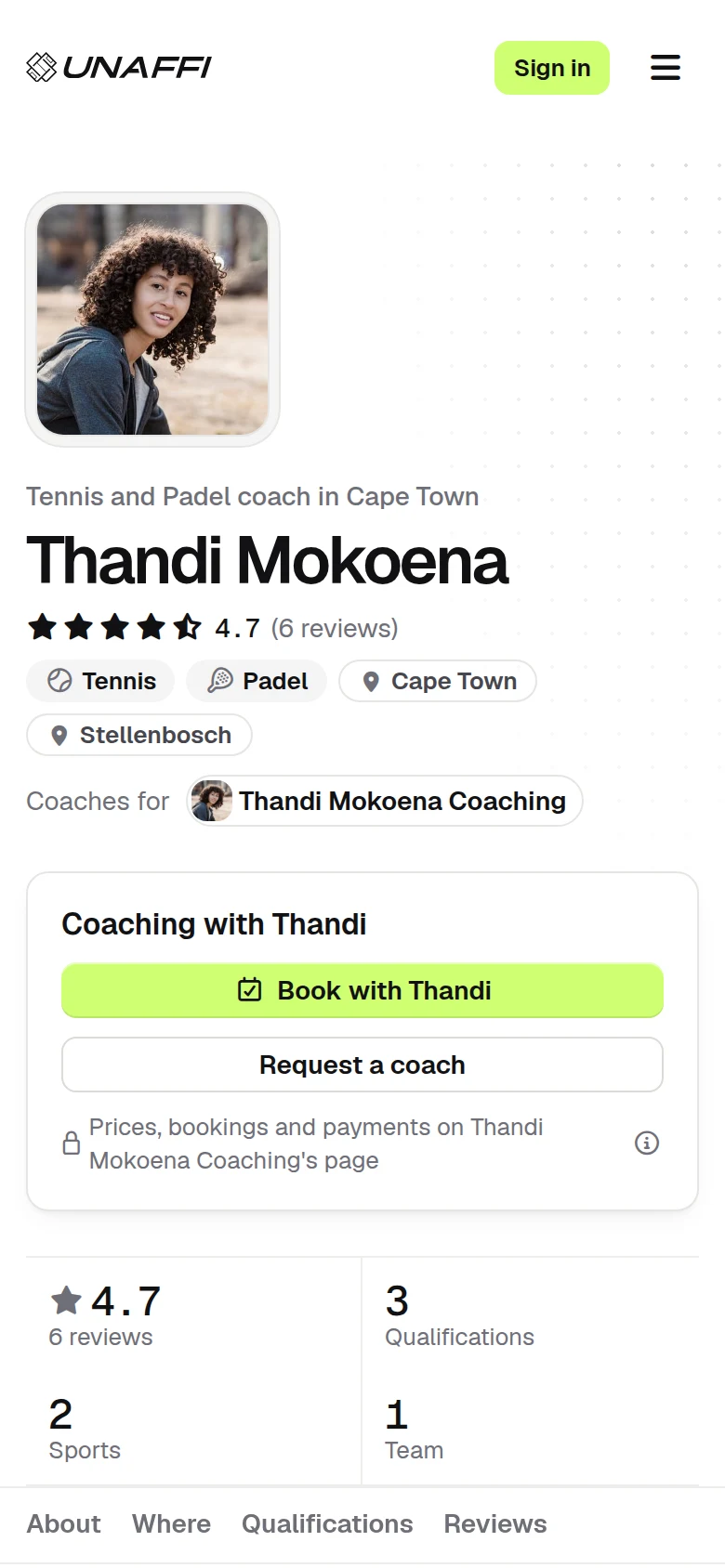
- Your name and photo, from your account profile, with your rating: stars, the average and how many reviews.
- The sports you coach and the towns you coach in, in a line over your name: "Tennis and Padel coach in Cape Town".
- Coaches for: your own coaching, and the clubs, schools or academies you work with, each linking to its page.
- Book with Thandi (your first name), once your coaching's page is public: it opens that page, with your prices, the sessions people can book and your memberships. Until then, the button is Request a coach.
- About: your bio, with headings, lists and links if you like.
- Where you coach: a map of your towns and cities.
- Gallery: photos and short videos of you coaching, your squads and your venues.
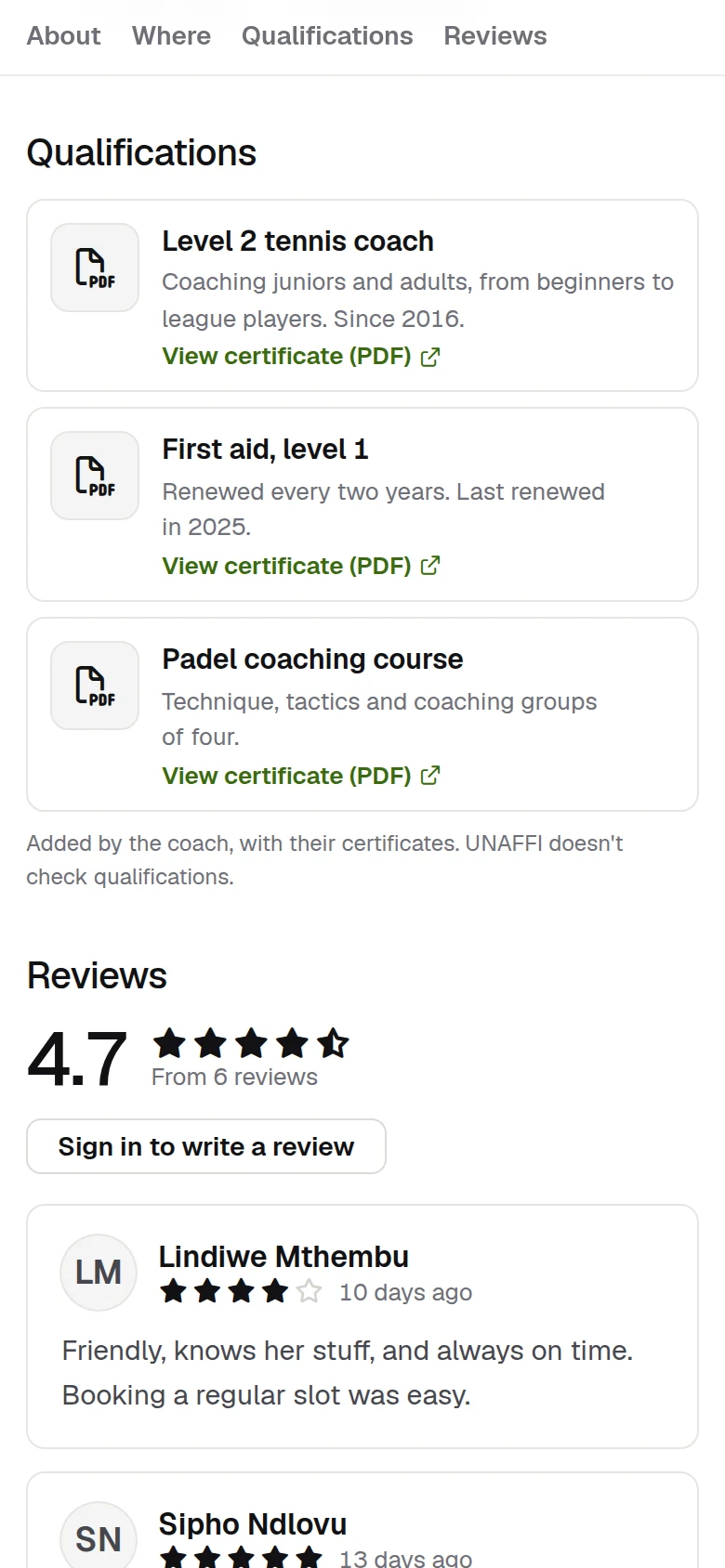
- Qualifications, each with its certificate to open.
- Reviews from the people you've coached.
Parts you haven't filled in don't show. Your email address and number are never on it.
2. Fill it in
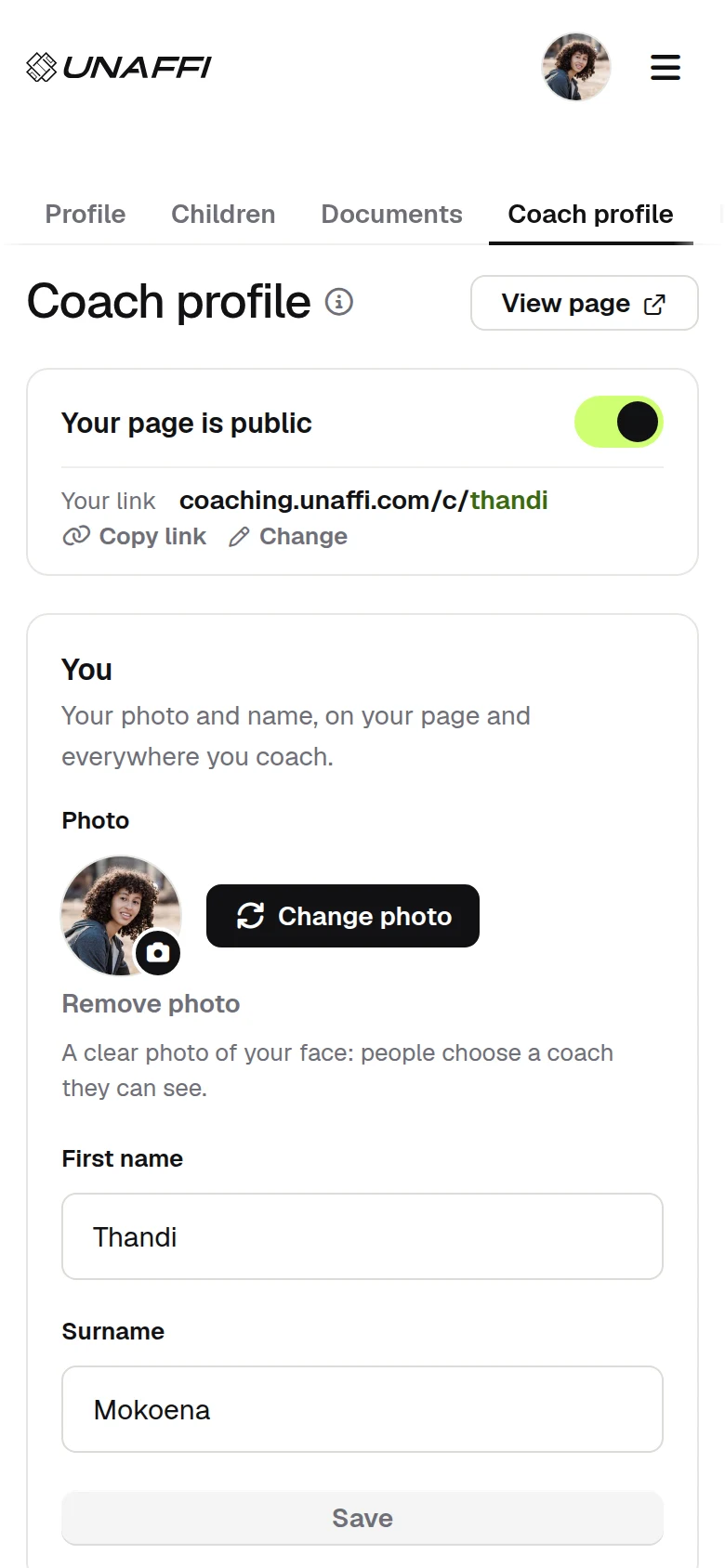
Your profile is under Account › Coach profile, and you can open it from anywhere: Me as a coach in the workspace's menu takes you there too, wherever you're working. Each part saves on its own. At the top are whether your page is public, and its link.
About you
- Bio, up to 3,000 characters: your experience and how you coach. Use the toolbar for headings, bold, lists, quotes and links.
- Sports you coach: as many as you like, from over 60 listed, or type one that isn't. A club or school you join starts from them, and its owner can say which you coach there.
- Where you coach: the towns and cities, searched by name. They're the map on your profile, and the requests in them are the ones your Leads show first.
Prices
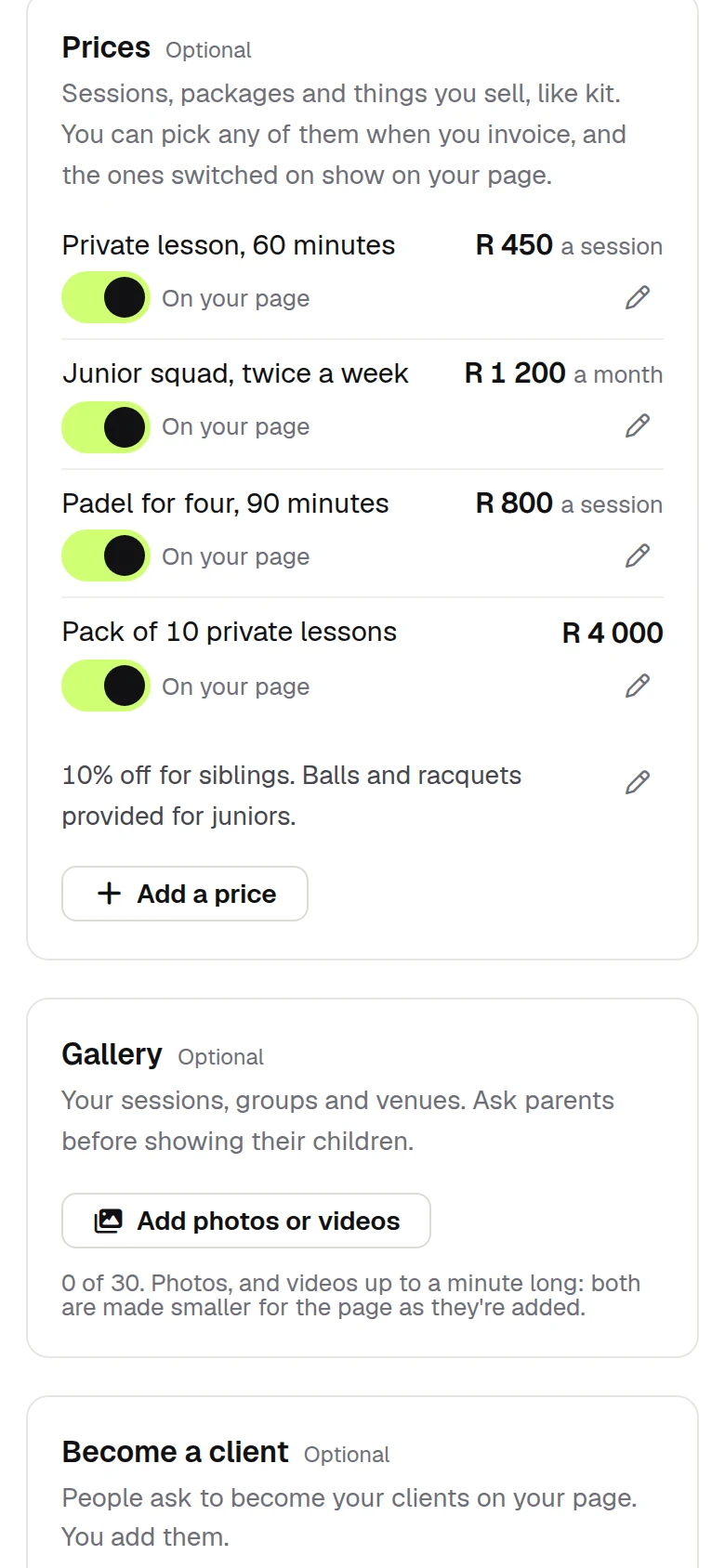
Prices belong to your coaching, your business, so they're on its page: Settings › Page in the workspace, with Become a client and your website embed. Add up to 12, each with what it's for, an amount in rand and what it's per: a session, an hour, a week, a month, a term, a year, or once-off for a pack of lessons or something you sell, like a club shirt. What it's per only shows beside the price; it doesn't change what you invoice. Every price is there to pick when you invoice: choose one in a rate or amount box to fill it in, or type your own. The ones switched on also show on your page as a guide, with a note under them for discounts or what's included. Switch a price off to keep it for invoices only.
Qualifications
They're yours wherever you coach, and you add them in Account › Coach profile. Add up to 20: coaching badges, first aid, degrees. Each has a name, a few words about it (who awarded it, when, what it covers) and its certificate, a photo or a PDF. People can open the certificate from your profile. UNAFFI doesn't check qualifications, and your profile says so.
Gallery
Add up to 30 photos and videos (each video up to a minute), several at a time: they show on your profile in your order, each with a caption if you like, and open full screen. They're made smaller for the page as they upload. Only add photos and videos you may share, and ask parents before showing their children.
Your name and photo are at the top of Account › Coach profile (and under Account › Profile), the same whether you're coaching or looking for sport. A clear photo of your face works best.
3. Complete it
Your page goes public, and you can apply to requests, once your profile has a photo, a bio, your sports and where you coach. Photos and qualifications are optional. Until then, Account › Coach profile lists what's left, and Me as a coach in the workspace's menu has a dot. Nothing else waits for it: your clients, schedule and invoicing work from the start.
To hide your page, switch Public page off at the top. You still work with your clients, but nobody else can open your page, not even the people you apply to: they see your name, photo and rating only.
4. Your link
Your profile has its own link, made from your name when you become a coach, and it stays yours wherever you coach: unaffi.com/c/thandi, or your full name if your first name's taken. It's at the top of Account › Coach profile, with Copy link and Change. Change it to any free name of 3 to 40 letters, numbers and hyphens. Your old link stops working straight away, and someone else could take it, so change it before you've shared it widely. View page opens your page as others see it (Preview while it's hidden).
5. Where people see it
- With every application you send: your name, photo and rating sit next to it, and one tap opens your profile (while your page is public).
- On Find sport: people searching for coaching near them find you by your sports and towns.
- Through your link: send it to anyone. See how to share your profile.
- On the pages you coach for: every host's page lists its coaches with a public profile.
- In search engines: a public page can be found, titled with your name, your sports and your first town, like "Thandi Mokoena – Tennis & Padel coach in Cape Town".
6. Make it count
- Use a recent, clear photo of your face.
- Start your bio with what you coach and where: it's the first line people read, and what search engines show.
- In your bio, say who you coach best (juniors, beginners, league players) and how a session with you goes. A heading and a short list make it easy to scan.
- Put your prices on your coaching's page: people are more likely to ask when they know what to expect.
- Add your qualifications with their certificates, and a few photos of you coaching.
- Ask the people you coach for a review: good reviews are what make someone choose you.
Coaching for a club or school?
Your coach profile and reviews are yours. They stay with you when you join or leave a club, school or academy. Your profile links to the places you coach for, their pages list you, and their applications show the profiles of the coaches they put forward. Their owners and admins can choose which of your sports you're shown with on their page; your own profile keeps yours.
Questions
Does my profile show my phone number or email address?
No. It shows your name, photo, sports, areas, bio, qualifications, photos and reviews, and who you coach for. Your contact details are never shown.
Can I choose my profile link?
Yes. You get one when you become a coach, from your name, like unaffi.com/c/thandi. Change it under Account › Coach profile to any free name of 3 to 40 letters, numbers and hyphens. Your old link stops working straight away.
Does UNAFFI check my qualifications?
No. You add them with their certificates, and your profile says they're added by you and not checked by UNAFFI. People can open each certificate.
How do people find my profile?
While it's public: on Find sport, where people search for coaching near them, with every application you send, through your link, on the page of each club, school or academy you coach for, and in search engines.
Can I hide my profile?
Yes. Switch Public page off at the top of Account › Coach profile, and only you can see your page. You still work with your clients, but the people you apply to see only your name, photo and rating: they can't open your profile until you switch it back on.
Does a coach profile cost anything?
No. Your profile, its qualifications and photos, and your reviews are on every plan, Free too. Plans differ only in their room: staff, active clients, storage, and invoices and applications a month.