Give your coaching, club or school its own page
A public page at your own link, in your colours: your coaches, sessions to book, memberships to join, facilities to hire and fixtures. On every plan.
· Updated
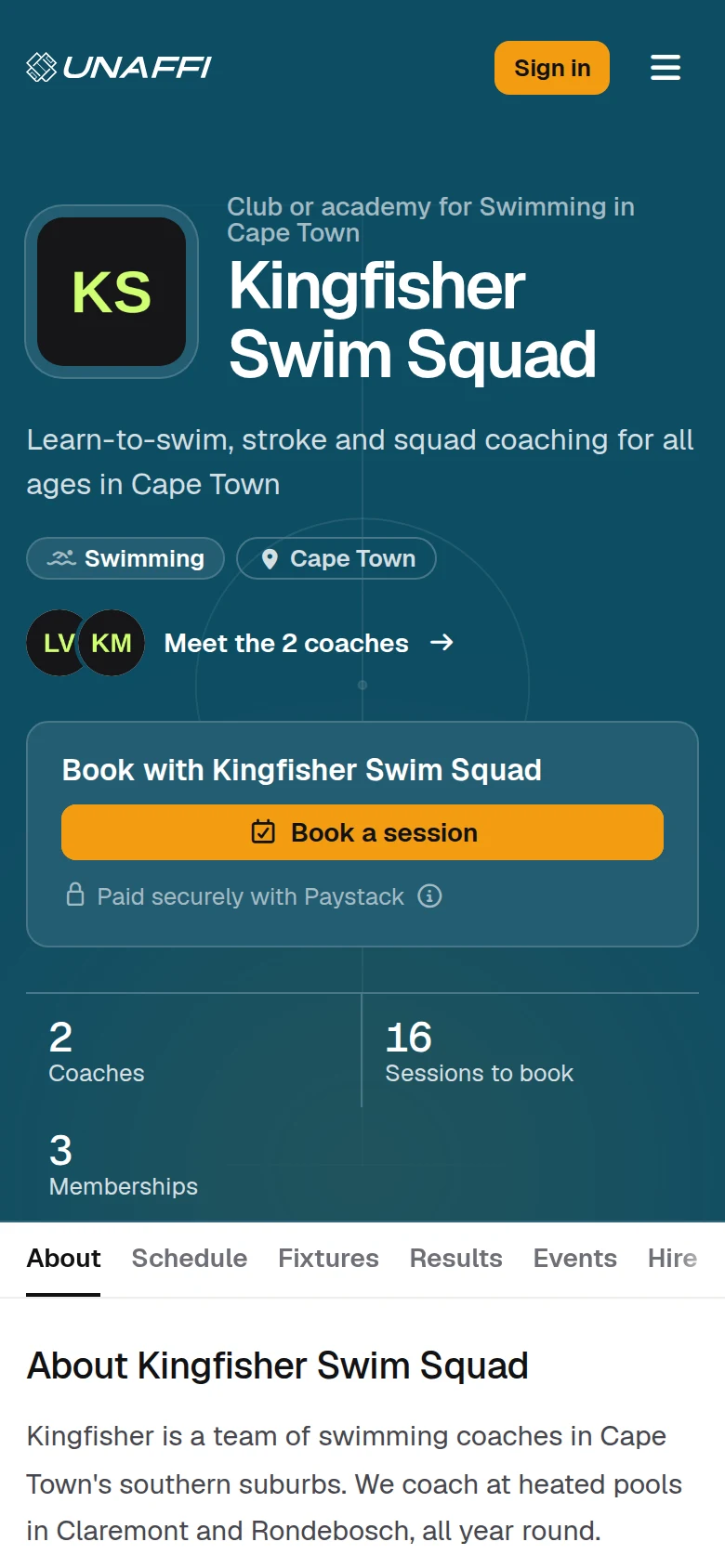
Every sports host on UNAFFI, from a coach on their own to a club, academy, school, venue or event organiser, has a public page at its own link, like unaffi.com/o/kingfisher-swim-squad. It's your own site, in your colours: who you are, your coaches, what people can book, join or hire, and where you are. Here's what's on it, how to fill it in, and where people find it.
1. Who has one
Every host has a page, on every plan, Free included. It goes public once it has a name, what it is, a logo and an about; until then, only your staff see it. A coach's own coaching has one too, for its prices and the sessions people book, beside their coach profile, which is theirs as a person.
2. What's on it
At the top: your name and logo, what you are and where, a line about you, your sports and areas, and your coaches' faces. Its main button goes to what you offer first: Book a session, Hire a facility, See the events or your memberships. With Become a client switched on, that's beside it. Under the top come its tabs, each once it has something on it:
- About: who you are, with headings, lists and links if you like; your coaches, each with their photo, rating and what they coach with you (tap a sport to see who coaches it); your memberships to join; a gallery, a map of where you are, and your prices, as a guide.
- Schedule: your public sessions, by day or week, to book and pay for.
- Fixtures, with Teams switched on; Events, with Events; and Results for both.
- Hire, with Facility hire, and Documents, with Forms and documents.
There's no email address or number on it. A coach's page also has Request a coach for someone who wants to ask for coaching.
3. Fill it in
Under Settings › Page, for your owners and admins. Each part saves on its own:
- Your link, at the top, beside whether the page is public: Copy link, and for the owner Change, to any free name of 3 to 40 letters, numbers and hyphens. The old link stops working straight away.
- Name and logo, and What it is, for the owner: they show wherever you do, on invoices, emails and bookings too.
- Colours: a Banner colour and a Buttons colour, picked or typed, or From your logo. Your page, your workspace, the emails your clients get, and your invoices, statements and pay pages are drawn in them. Use UNAFFI's colours goes back.
- About the team: a tagline of up to 120 characters, and an about of up to 3,000, with headings, bold, lists, quotes and links. Say who you are, your coaches and venues, your squads and programs, and how to join.
- Coaches and sports: the sports each of your coaches is shown with. Until you choose, it's what their own profile says. A coach shows on your page once their profile is public.
- Where you coach: the towns and cities on your map, up to 20. Leave it empty and the page shows your coaches' towns.
- Prices: up to 12, each with what it's for, an amount and what it's per, and a line under them. They're a guide on your page, and a tap away when you invoice.
- Gallery: up to 30 photos and videos (a minute at most), several at a time, in your order, each with a caption if you like. Only photos you may share, and ask parents before showing their children.
- Add to your website: your schedule or memberships on your own site, once the page is public.
Invite coaches under Staff, on the Team, Pro or Enterprise plan. What you call your clients, groups and coaches is under Settings › Customise, and your page uses those words too.
4. Where people find it
- Through your link: share it with parents and players, and put it on your website, your socials and your flyers. On your page, as its owner or an admin, press Copy link, or Edit page to change it.
- On Find sport: your public sessions, courts, events and memberships show to people searching near you.
- On your coaches' profiles: each coach profile says who they coach for, linking to your page.
- In search engines: titled with your name, your sports and your first town, like "Kingfisher Swim Squad – Swimming & Water Polo coaching in Cape Town".
5. Make it count
- Add your logo, and a tagline that says what you offer and where.
- In your about, say who you coach (ages, levels), where and when, and how someone joins.
- Ask your coaches to fill in their profiles: they're your page's coaches.
- Add photos of your sessions and venues.
Questions
Who has a page?
Every host, on every plan, Free included. It goes public once it has a name, what it is, a logo and an about. Until then, only its staff see it.
What's my page's link?
unaffi.com/o/ and a name, made from yours when you start, like unaffi.com/o/kingfisher-swim-squad. Its owner can change it under Settings › Page to any free name of 3 to 40 letters, numbers and hyphens. The old link stops working straight away.
Who can change the page?
Its owners and admins: its colours, tagline, about, towns, prices, gallery and the sports each coach is shown with. The name, logo, what it is and the link are the owner's. Who's on it comes from the coaches with a public profile.
Which coaches show on it?
Everyone coaching with you whose coach profile is public, each with the sports you set for them (or their own), linking to it. A coach whose profile isn't filled in yet, or who has hidden their page, isn't shown.
Can people contact us from the page?
Not directly: your page shows no email address or number. They book, join or hire from it, or ask to become your client when you switch that on. A coach's page also has Request a coach, which goes to the coaches in that sport and area.
Does a page cost extra?
No. It comes with every plan, with up to 30 photos and videos, your colours and its own link.