Client notes and private notes for coaches
Notes your staff share about each client and squad, with photos, videos and voice notes, and private notes only you see. Clients never see either. Free.
· Updated
What did you work on last week? What did you agree with their mum? Is the squad ready for the round robin? UNAFFI keeps your notes on each client's and group's page, under their Messages tab (CRM, with CRM switched on). With staff, on the Team, Pro or Enterprise plan, there are two kinds: Notes, which your staff share, and your Private notes, which only you see. On Free and Solo it's just you, so everything you write is a private note. Every note is about at least one client or group. Clients and parents never see either. To talk to them, use Messages.
1. Notes, for your staff
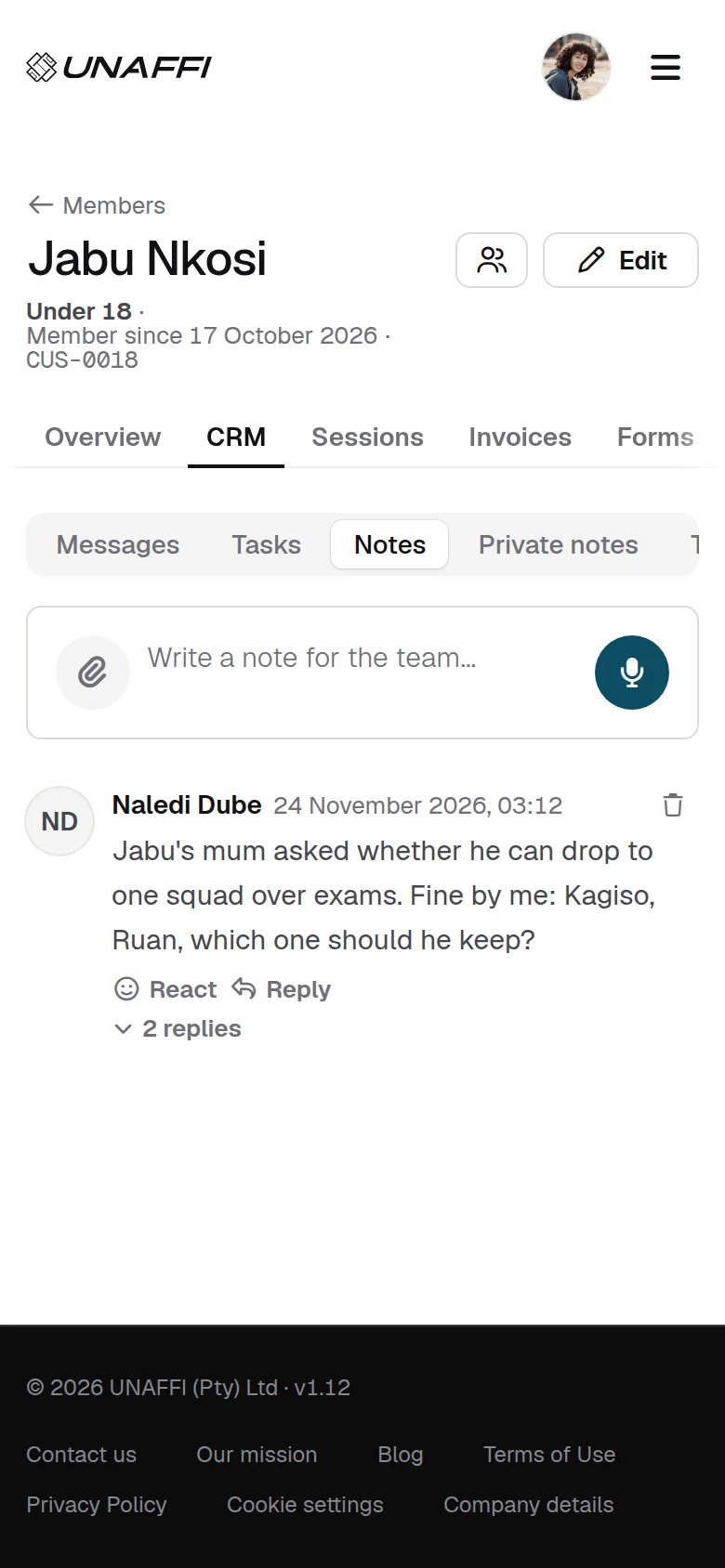
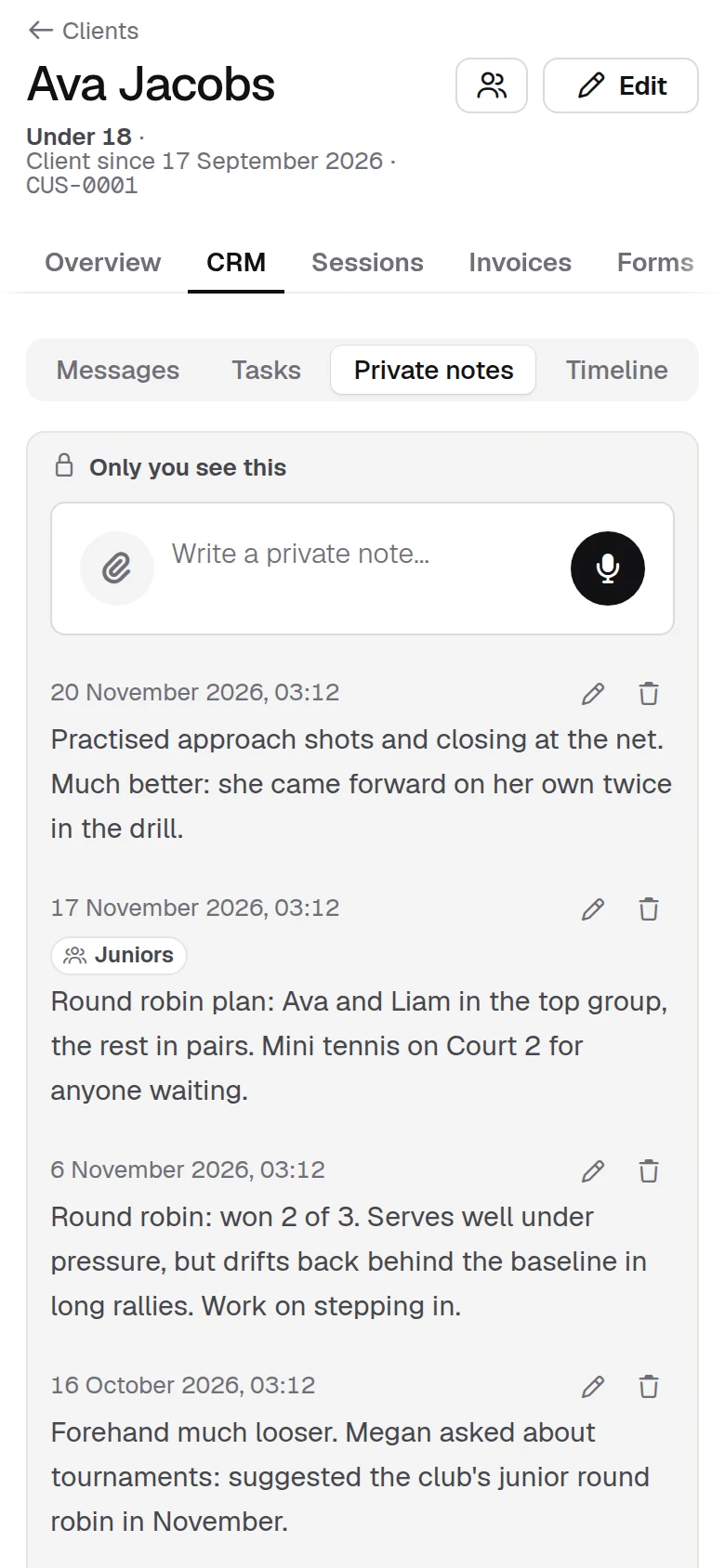
Open a client or a group, press Messages (or CRM) and then Notes, and write how a session went. The note is about them, and their notes are listed newest first. A note about a group shows on the page of everyone in it. With CRM switched on, CRM › Activity in the menu shows what's new across all your clients.
A note is seen by your owners and admins, and by the coaches of everyone it's about, as coaches see only their own clients. Your staff can reply under a note and react with 👍 ❤️ 🔥 👏 💪, to talk someone's progress over without leaving their notes.
2. Private notes, for you alone
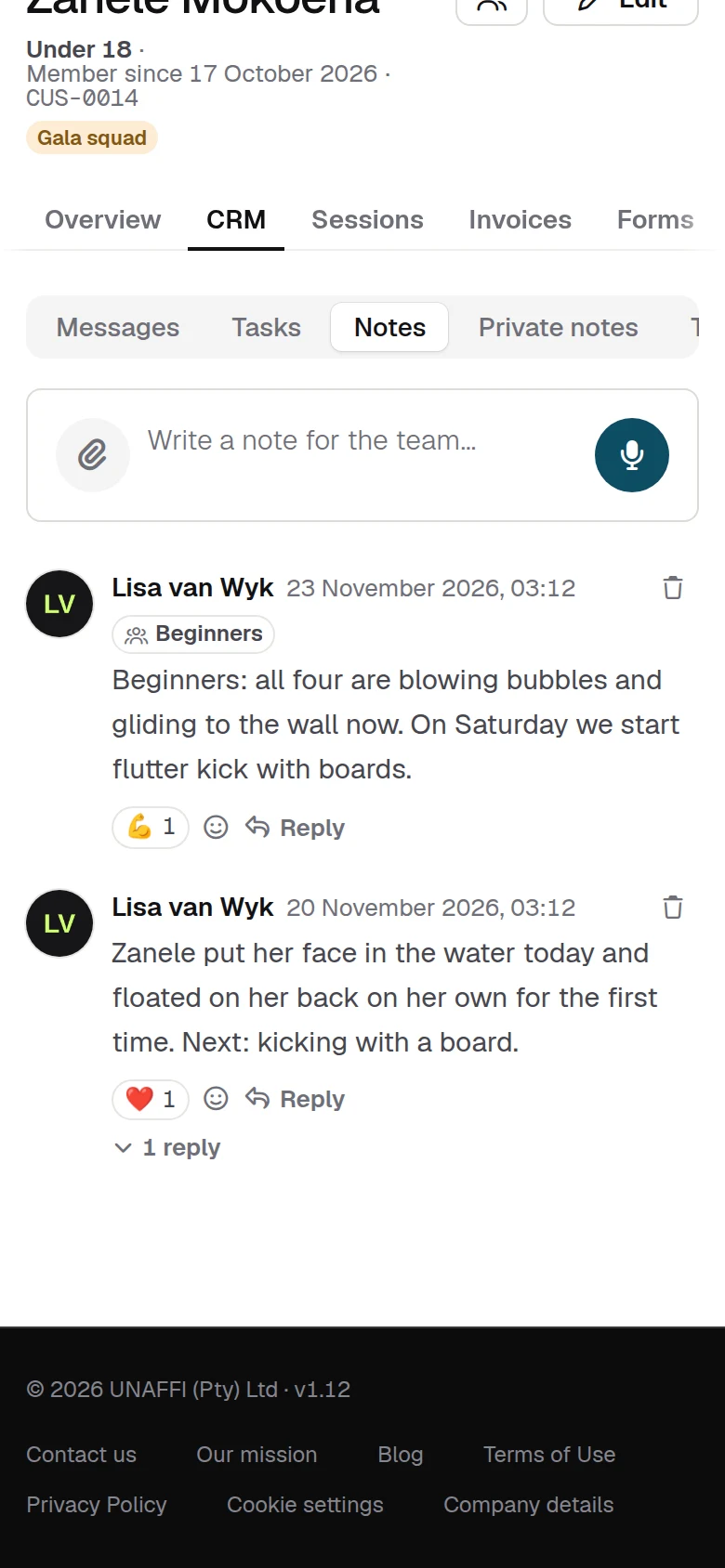
The Private notes tab, beside Notes, is just for you: it shows a lock and "Only you see this", and not even the owner can read it. Write what you think of their progress, or the plan for next term. A private note can't be moved into the shared notes, and a shared note can't be moved into your private notes, so nothing is shared by mistake.
3. Write as you go
Type a note and press Enter to save it, or tap the round button on a phone. Shift and Enter (Return on a phone) starts a new line. Add to it with the paperclip: Take photo, Record video (up to 3 minutes), Photo or video from your gallery, a Voice note (up to 10 minutes) or a Document, like a PDF or a spreadsheet. Files upload as you add them, and photos and videos open full screen when you tap them.
4. Change your mind
Press the pencil on one of your notes to change its words, its files or who it's about, and it's marked as edited. The bin deletes it, after asking, as it can't be undone, and takes its replies with it. Only whoever wrote a note can change it; owners and admins can also delete any of the shared notes.
Notes and private notes sit beside your messages and each client's timeline, with their tasks when CRM is switched on, and they're free.
Questions
Can my client see what I write?
No. Notes and private notes are for you and your team only: clients and parents never see them. To talk to them, use Messages, which every client and group has with your team.
Who on my staff sees a note?
A note is seen by your owners and admins, and by the coaches of everyone it's about. Other coaches don't. Your private notes are yours alone, and not even the owner sees them.
What is the difference between notes and private notes?
Notes are shared with your staff, and private notes are for you alone. Both are about at least one client or group, and both are on its Messages tab (CRM, with CRM switched on). On Free and Solo, with no staff to share with, there are only private notes. They have separate tabs and separate boxes to write in, and private notes are marked with a lock, so a private thought never lands in the shared notes by mistake.
Can I add photos, videos or voice notes?
Yes: photos, videos up to 3 minutes, voice notes up to 10 minutes and documents (PDF, Word, Excel and the like). Take or record them on the spot, or choose files. Photos and videos open full screen when you tap them.
What happened to my journal folders?
On 24 November 2026 notes replaced folders. Entries in team folders became notes about the same clients and groups, and entries in Only me folders became your private notes. Entries in folders about nobody weren’t kept, as every note is now about a client or group, and folder names were dropped.
Are notes and private notes free?
Yes, on every plan, Free too, with as many as you like. Their files count towards your plan's storage.