A CRM for sports clients: stages, tasks, campaigns and timelines
See where each client stands, from New to At risk, and everything sent to them on one timeline. Set tasks with a reminder, and send campaigns by email or push.
The CRM keeps track of your clients for you: where each one stands, what's happened with them, what you mean to do about them, and what you send to many at once. Switch it on in Settings › Customise, and Messages in your menu becomes CRM, with Activity, Tasks and Campaigns as well.
1. Activity
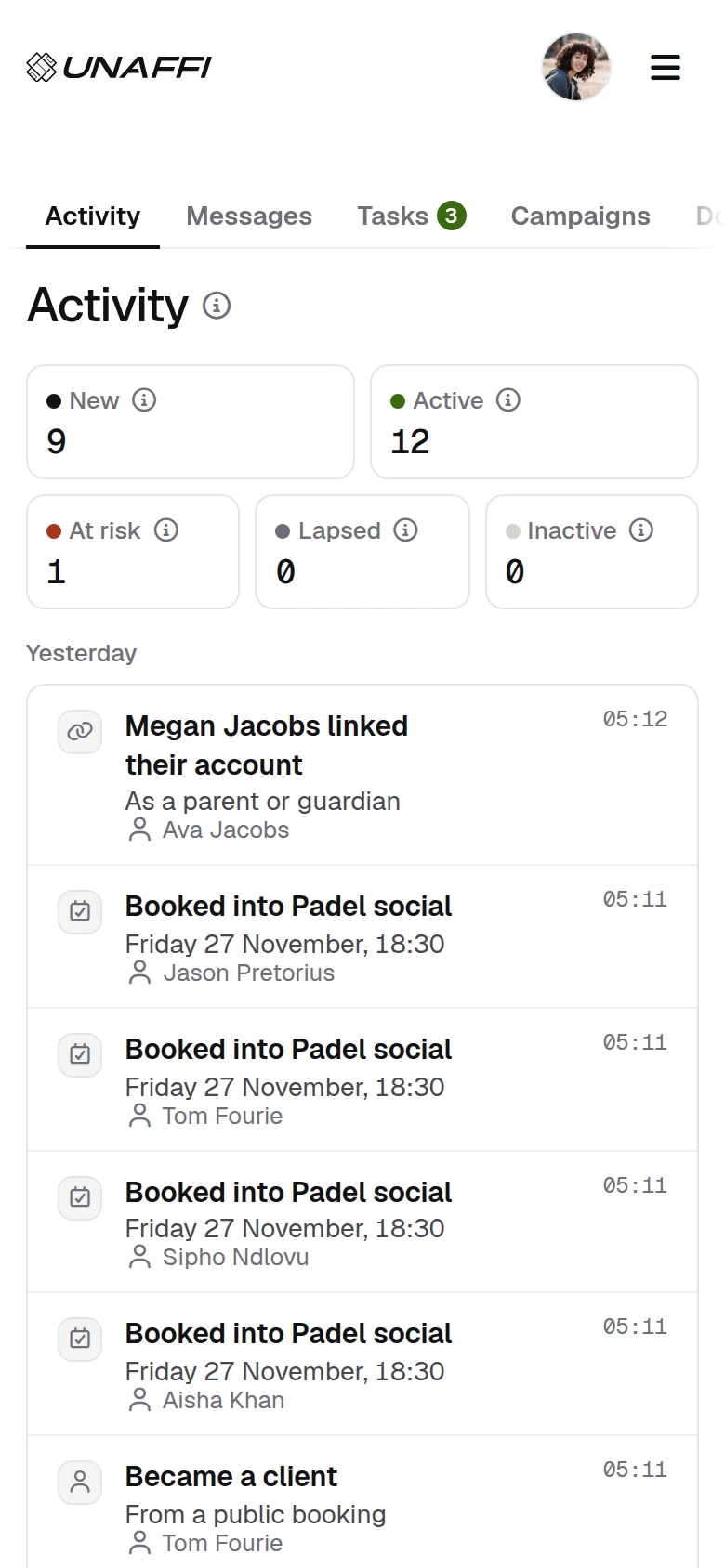
CRM opens on Activity. At the top is how many of your clients are at each stage: tap one to list them. Under it is what your clients and groups have been doing lately, newest first: messages, bookings, forms, joining, and linking their UNAFFI accounts. Owners and admins see payments there too.
2. Stages, worked out for you
UNAFFI works out each client's stage from when they joined, and from their sessions, bookings and payments, so there's nothing to keep up to date:
- New: added in the last 30 days.
- Active: on a session, booked or paying in the last 30 days.
- At risk: missed their last 2 sessions, or nothing for over 30 days.
- Lapsed: nothing for over 90 days.
- Inactive: deactivated.
Filter your client list by stage, to call everyone at risk, say. If you've changed your words in Settings › Customise, the stages use them: for a school, practices in place of sessions.
3. Each client at a glance
A client's Overview starts with them at a glance: their stage, when they became your client and where from (a booking, a membership, your page or an application), when they last did something and were last in touch, their attendance and their tasks due. Owners and admins also see what they've paid and what they owe. Their tags are on it too.
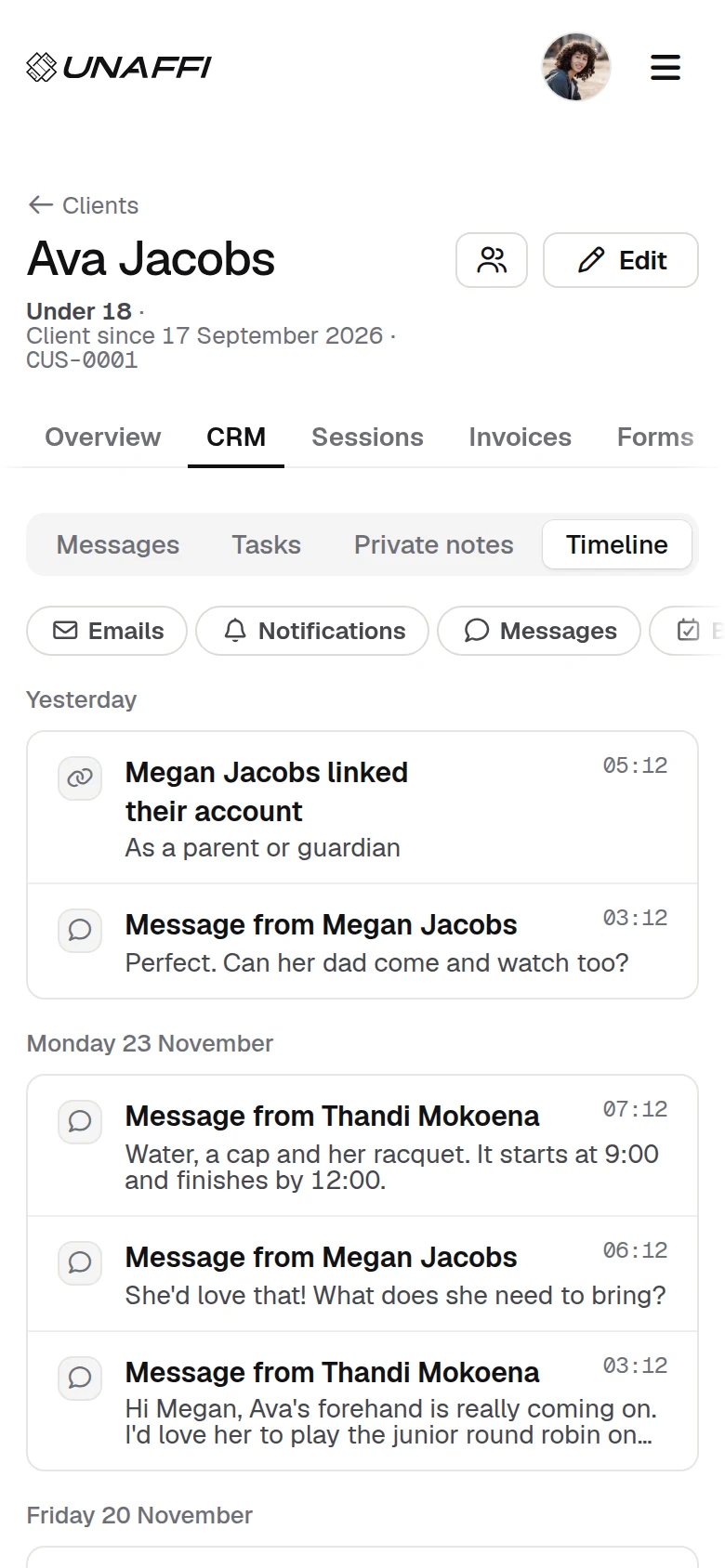
Their CRM tab has the rest: their messages, tasks, the team's notes, your private notes and their timeline.
4. Their timeline
A client's CRM › Timeline lists everything sent to them and from them, newest first: emails (whether each was delivered, and tap one to read it as it was sent), notifications, messages, bookings, invoices, forms, notes, tasks, and changes to their account, like linking it. Tap the kinds above it to see only those. Invoices are for owners and admins.
5. Tasks
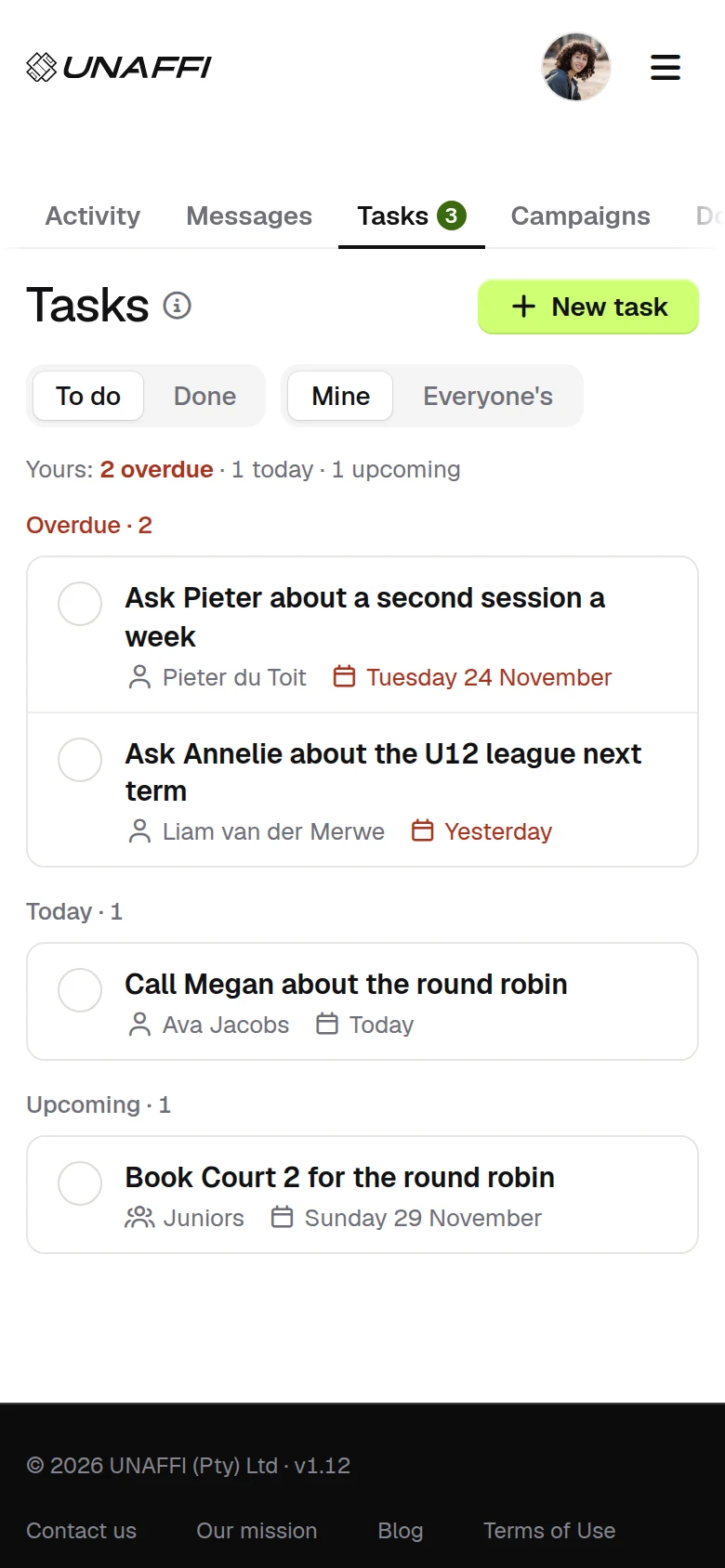
A task is something to do about a client or a group by a day, like "Call Megan about the round robin". Add one on their CRM › Tasks, or press New task under CRM › Tasks in the menu, for anyone. It's yours, unless an owner or admin gives it to someone else on your staff who sees them.
CRM › Tasks lists yours, or everyone's you see, to do or done. Whoever a task is for gets a push notification at 07:00 on the day it's due. Tick it off when you've finished.
6. Campaigns
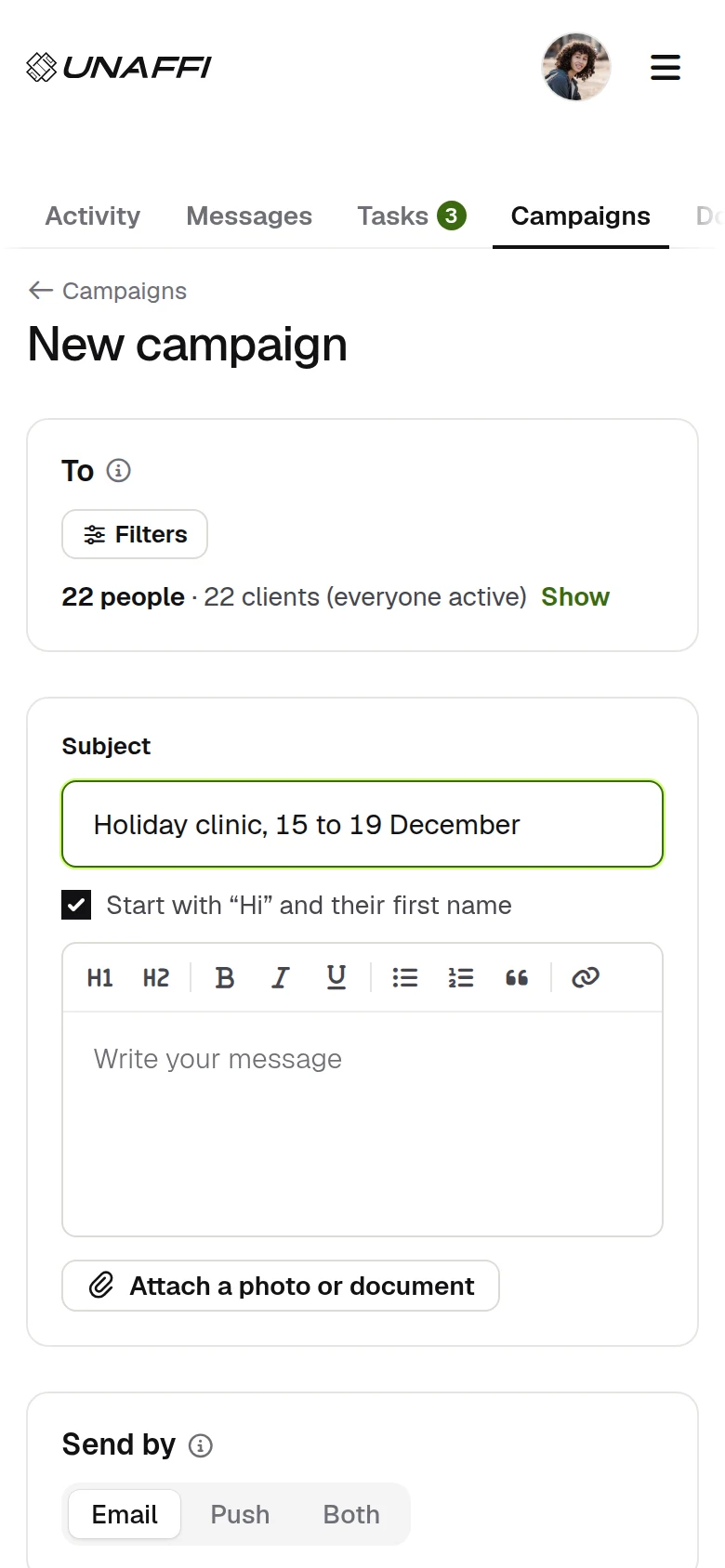
Owners and admins write to many clients at once under CRM › Campaigns, or with Campaign on a filtered client list:
- To: pick clients by tags, groups, sessions, memberships, stage and more. With no filters, it goes to everyone active. For clients under 18, it goes to their parents, and the UNAFFI accounts linked to a client get it too, each person once.
- Message: a subject and up to 10,000 characters, with up to 3 photos or documents. Tick Start with “Hi” and their first name to greet each person.
- Send by: Email, Push or Both. With Push, anyone a push can't reach gets the email.
- When: Send now, or Schedule it for a day and time. Who it goes to is worked out again when it's sent.
Press Send me a test to see it first. Once it's sent, Campaigns shows how many people it reached, how many by push and how many emails were delivered. Replies go to the address you set there, or to the owner. Every email has an Unsubscribe link, which stops your campaigns to that address.
7. Tags and saved audiences
Tags sort clients your way: an age group, a level, "Holiday camp". Anyone on your staff tags clients, on their Overview or many at once from the list. Owners and admins make new tags as they tag, and rename or delete them under Manage tags. Filter your list by tags, or pick a campaign's clients by them.
Owners and admins can also save filters they use often as an audience, like "Under 12s who owe", at the top of the filters panel. Pick it again for your client list or a campaign.
8. Notes and private notes
A client's CRM tab also has the team's Notes about them, on Team, Pro and Enterprise, and your Private notes, which only you see. Clients never see either. More in client notes and private notes.
9. Who sees what
Owners and admins see every client. A coach sees their own clients and groups, with their activity, timelines and tasks. Campaigns are for owners and admins. See what each role sees.
10. Without the CRM
Switched off, Messages is still in your menu, and each client's page has a Messages tab in place of CRM, with their messages, notes, private notes and timeline. Activity, Tasks and Campaigns are hidden, and nothing in them is lost. See messages with your clients.
Questions
Does the CRM cost extra?
No. Like every feature, it works on every plan, Free too. Switch it on in Settings › Customise.
How does UNAFFI decide a client is at risk?
A client is at risk when they've missed their last 2 sessions, or done nothing for over 30 days. After 90 days with nothing, they're lapsed. It's worked out from their sessions, bookings and payments, so there's nothing to update.
How am I reminded about a task?
Whoever the task is for gets a push notification at 07:00 on the day it's due, once they've turned notifications on. There's no email: it's on CRM › Tasks.
Who gets a campaign about a child?
Their parents or guardians, at their email addresses, and the UNAFFI accounts linked to the child. Each person gets it once, even with several children on it.
Can clients stop my campaigns?
Yes. Every campaign email has an Unsubscribe link that stops your campaigns to that address. Your invoices and reminders still reach them.