How to run a sports event: entries, tickets, check-in and results
Put a gala, race or tournament on your page with entries and tickets. People enter and pay online, get a QR ticket, are checked in at the gate, and see their results.
· Updated
A swimming gala, a fun run, a weekend tournament: put it on your page, let people enter and pay online, check them in at the gate, and publish the results. Here's how.
1. Add the event
Switch on Events in Settings › Customise, if it isn't on: a new event organiser starts with it. Then press Add session on your schedule and choose Event. Give it a name, where it is, and its first and last day: an event can run up to 14 days.
Then add what it offers, each with its own price (or free) and number of places:
- Entries for people taking part: "U14 girls 100 m backstroke". Say who can enter each one (an age group, a gender) and how its results are measured: a time (lowest wins), a distance or height (highest wins), points, or a placing only.
- Tickets for spectators: "Spectator, R 30".
Give members their own price on any of them, and say how many each person can pick, when entries open (up to a year before) and close, and until when people can cancel.
2. People enter from your page
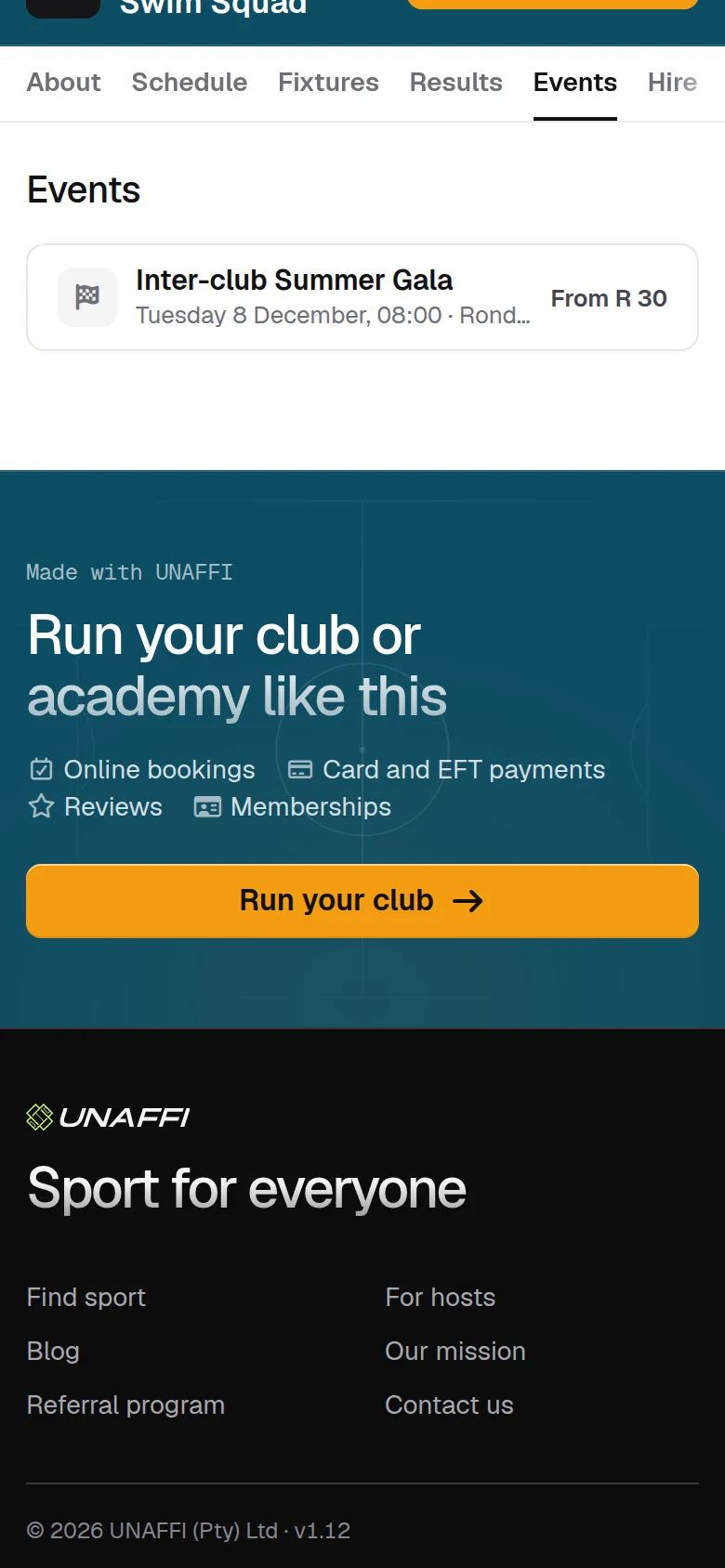
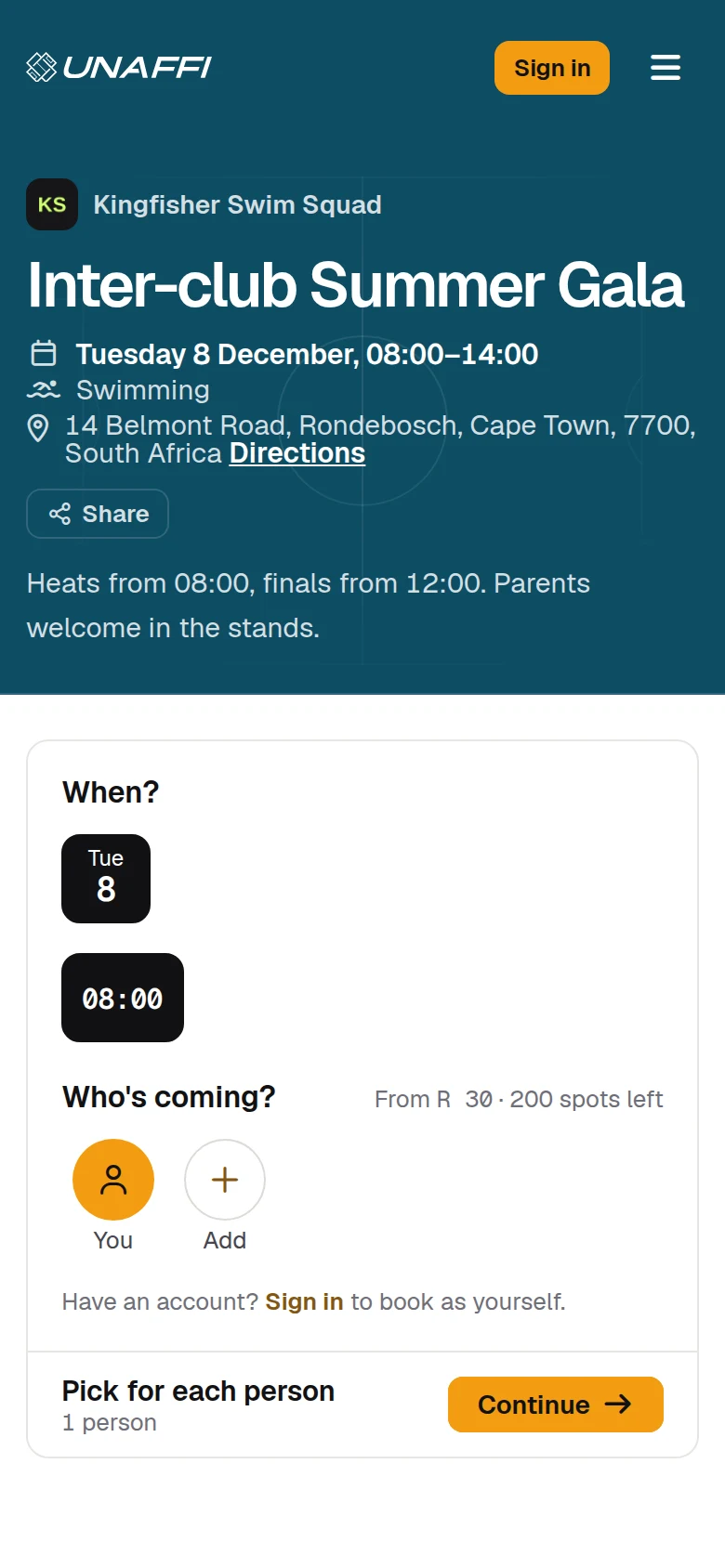
The event shows on your page, under Events and on its calendar. People enter themselves, other adults and their children in one go, each picking their entries and tickets, and pay by card. They become your clients, and their names are on the event's register.
3. Check people in at the gate
Everyone booked gets their own ticket with a QR code, on their booking's page and in the app under Schedule › Tickets. At the gate, scan it with your phone's camera and tap Check in.
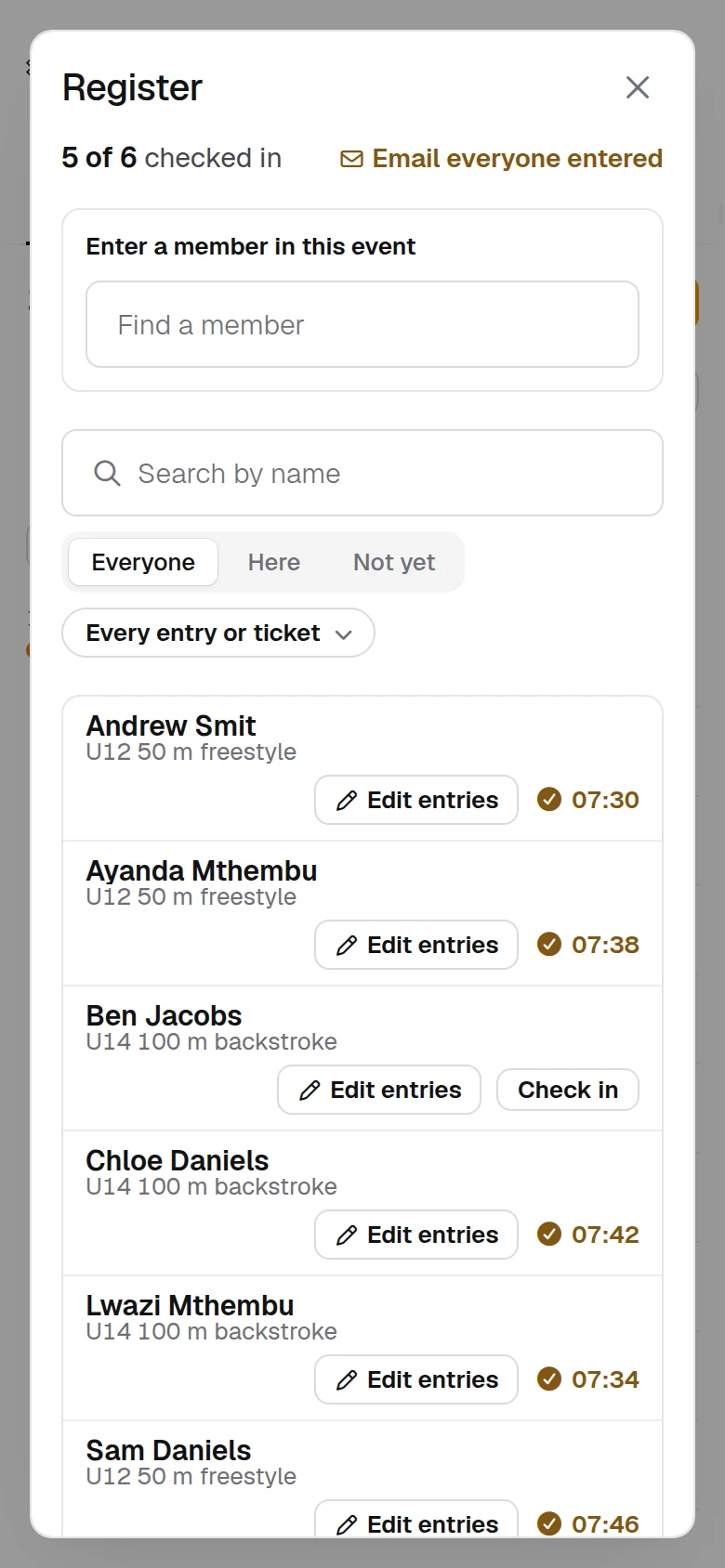
Or open the event and press Register: it counts who's checked in, and you can search by name, see who's here or not yet, filter by entry, check someone in, or enter one of your clients yourself. With CRM switched on, Email everyone entered writes to all of them at once.
4. Record the results
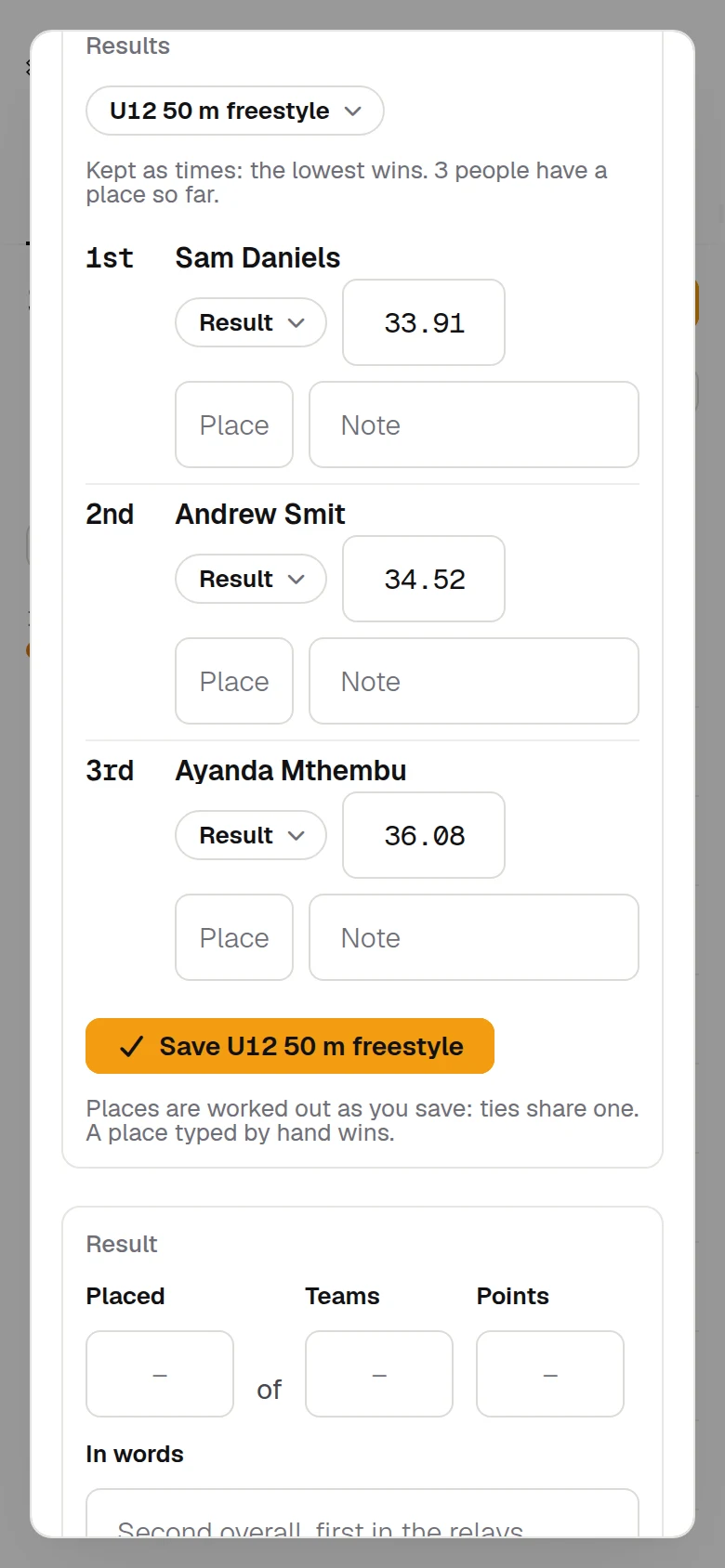
Under Results in the register, choose an entry and fill in each person's time, distance or points, or mark them as didn't start, didn't finish or disqualified. Places are worked out as you save, ties share a place, and a place you type yourself wins. Each person sees their results in the app, and their parents too.
Placings show on your page's Results and on the event's page. Switch on Show names publicly under the event's own result to show who placed.
For matches against other teams, see fixtures and results.
Questions
How big can an event be?
Up to 2 000 people and 14 days long, with up to 60 entries and tickets. Entries can open up to a year before it starts.
How do tickets work?
Everyone booked gets their own ticket with a QR code, on their booking’s page and in the app under Schedule › Tickets. At the gate, your staff scan it with their phone’s camera and tap Check in, or check people in from the event’s register.
Are the results public?
Placings show on your page and the event’s page. People’s names show there only if you switch on Show names publicly for the event. Each person always sees their own results in the app.
What does it cost?
Nothing extra from UNAFFI: events are on every plan. Paystack's fee comes off each card payment before it reaches your bank account.