Memberships and recurring invoices: get paid every month without chasing
A squad at R 1 200 a month, or a free registration that places people in teams: clients join from your page, and their card pays every period. Or repeat any amount.
· Updated
A squad at R 1 200 a month, private lessons at R 450 a week, a yearly club fee: set it up once, and UNAFFI makes each invoice on its day, sends it, and charges your client's card. Here's how.
1. Set up a membership
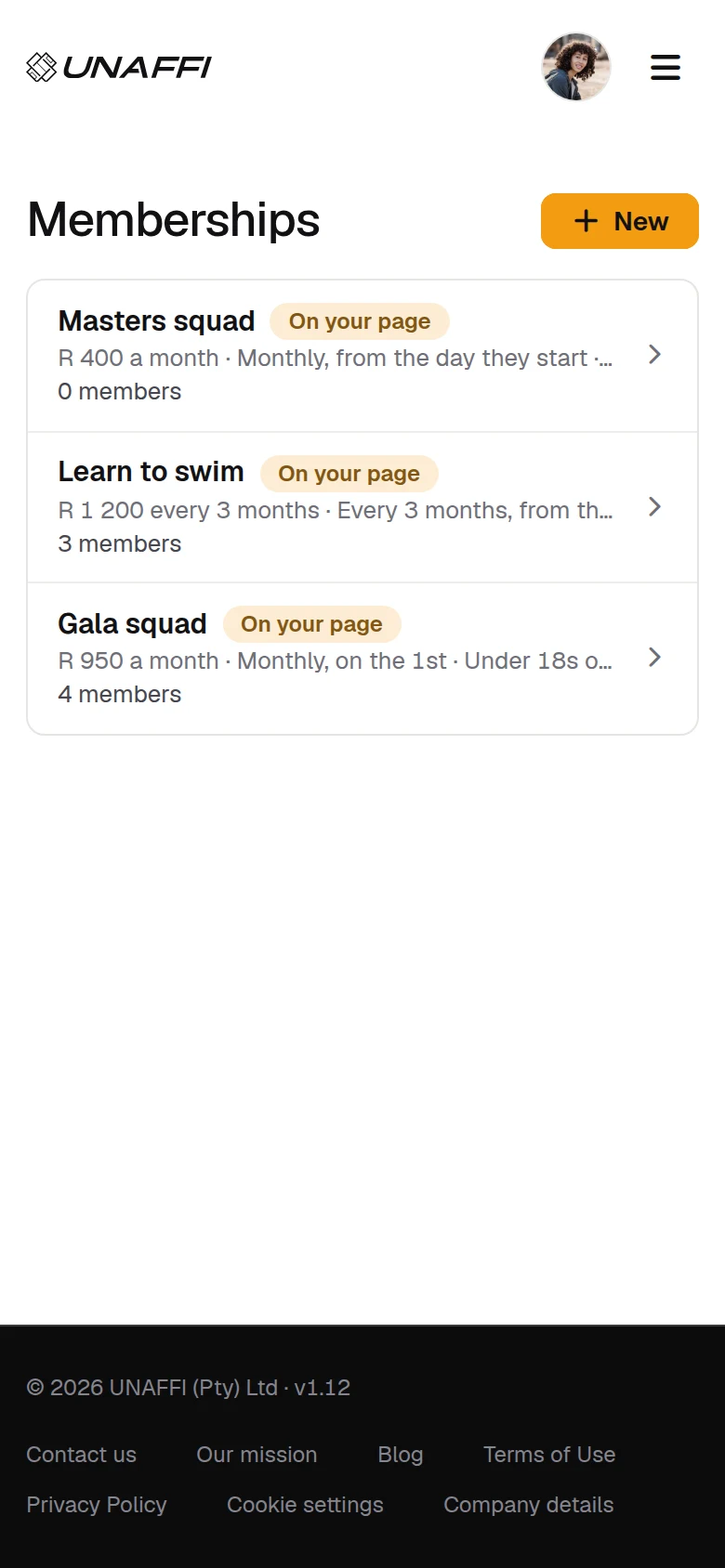
Go to Memberships and press New. Give it a name, a price and how often it's paid: weekly, every 2 weeks, monthly, every 3 months or yearly. If Memberships isn't in your menu, switch it on in Settings › Customise.
Then choose when it's paid:
- From the day they start. Each member pays every period from their own start: someone joining on the 14th pays on the 14th of each month.
- On set days. Everyone pays on the same day, like the 1st of each month. Someone starting in between pays for the days until then, worked out from the price, or the full amount, as you choose.
You can also put its members in a client group, to add them all to a session at once.
Under Who can join, choose everyone, under 18s or adults, ages or age groups (U13 to U15), and a gender. Each person joining gives their date of birth or gender when it needs them, and anyone who doesn't fit is turned away with the reason.
Members can also get their own price on anything people book from you: a session's place, an event's entries and tickets, or a court's hire. Give each membership a price or a percentage off; someone on several pays the lowest. They sign in when they book to get it. Or make something for members only, under its Who can join: anyone else is asked to join first.
2. Let people join from your page
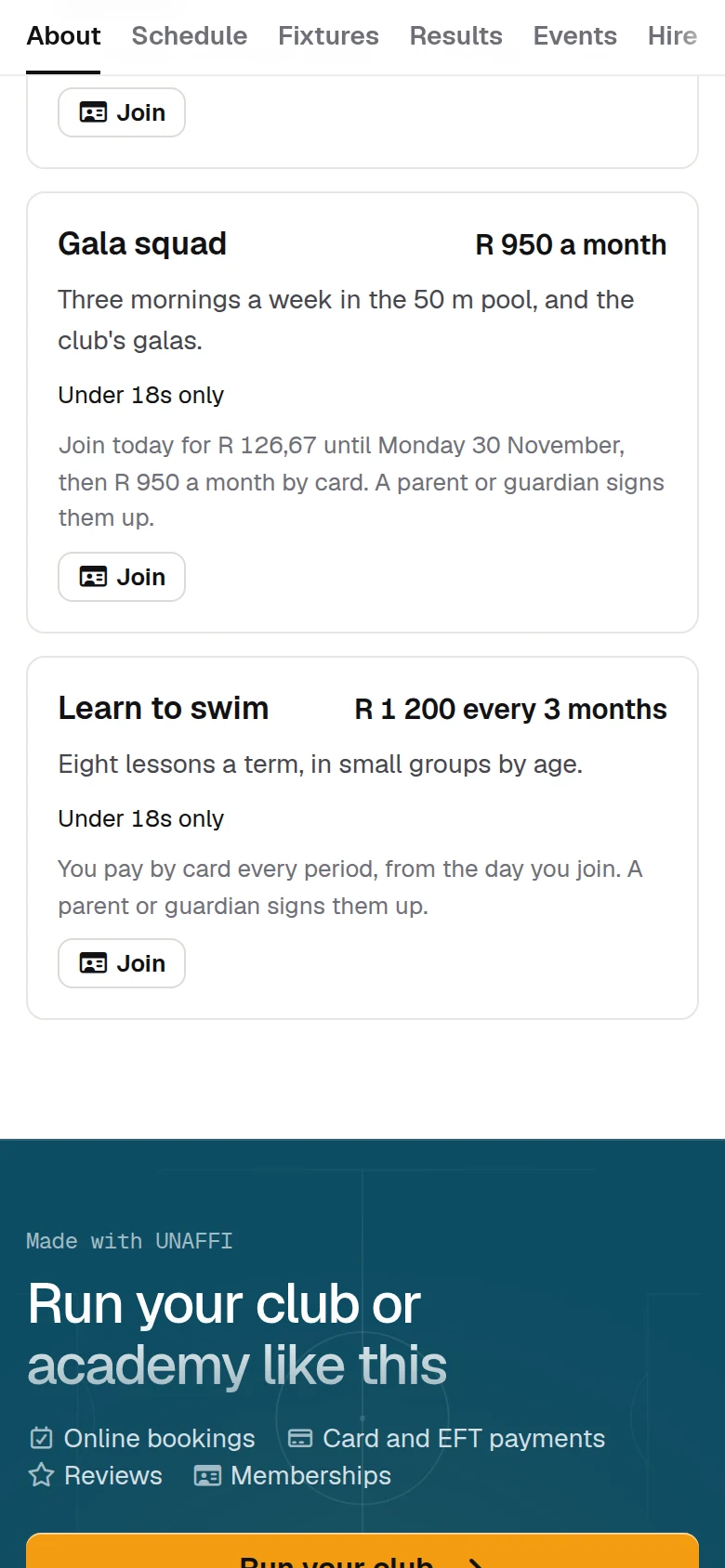
Switch on Anyone can join from your page, and the membership shows on your page with a Join button. Copy its link from the membership's page to share it too.
They fill in everyone joining on one page (themselves, other adults with their own email address, and their children, as their parent or guardian, with your form if you picked one for the membership), and pay the first period by card. They become your clients, with their answers, their card is saved for the rest, and you hear about each new member.
Joining with friends? They can leave open spots and share one link, on WhatsApp say. A friend who takes a spot pays their own first period from it. If it isn't paid within 48 hours, it comes off the card that paid for the rest, which then pays for them until they save their own.
3. Free registrations, and placing people in teams
A school registering learners for cricket, or a club for its winter league, doesn't charge every month. Choose Free: nobody is invoiced, and there's no card to save. A school's are called registrations, as a school's usual words are learners, teams and terms (you can change any of them in Settings › Customise).
Give it a sport and the terms or seasons it's for (set them in Settings › Seasons, or Terms at a school: see terms and age groups). A place lasts until the last one ends. Each person who joins goes in the group of that sport they fit, by its age group and gender, with room. When none fits, or several do, they wait under Clients › Groups, in Clients to place, with the groups that fit them a tap away, and Place automatically for when more groups are added.
Age groups are counted the usual way: someone's age on your cut-off day (1 January unless you change it), plus one, in the year the first term or season starts. A 13-year-old on 1 January 2027 is U14 for 2027.
4. Add clients yourself
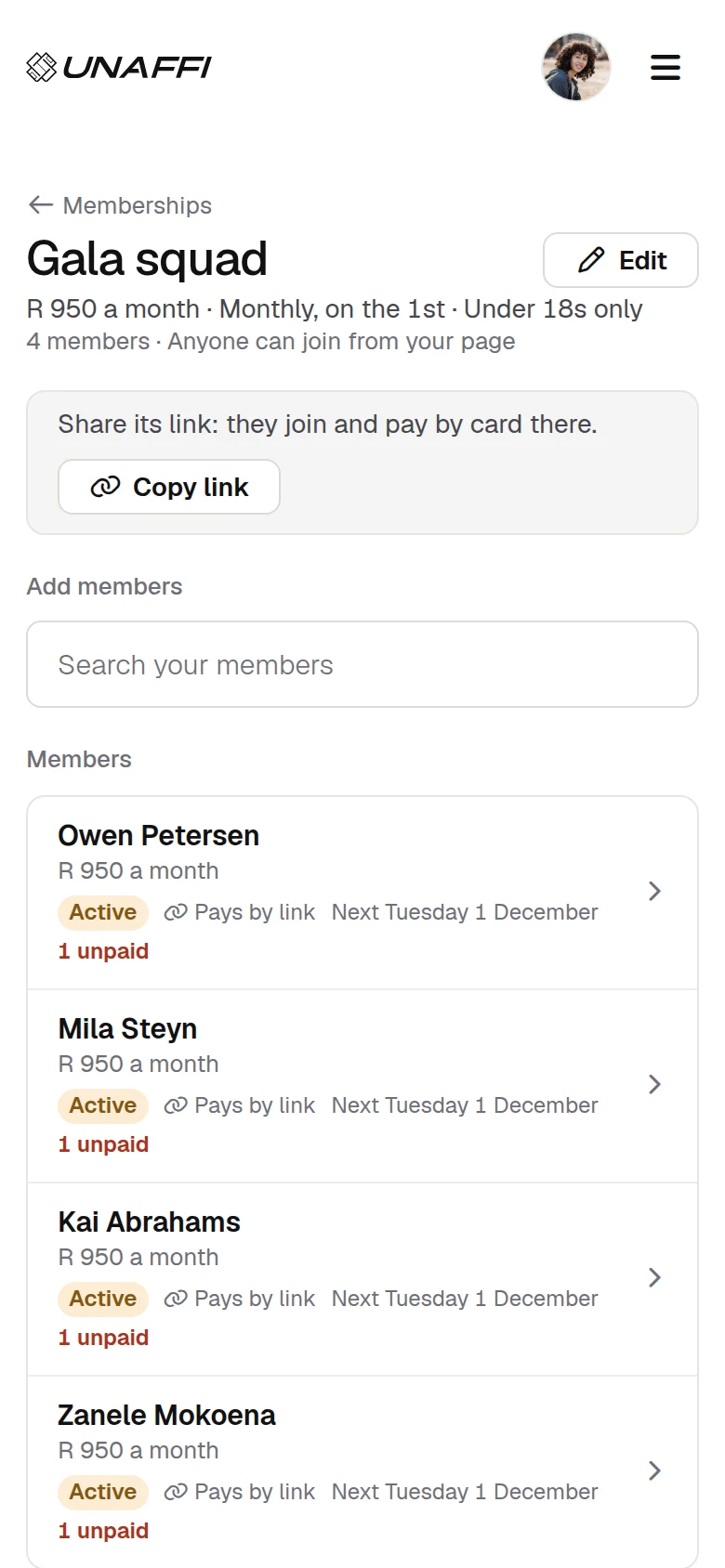
On the membership's page, under Add clients, search your clients, choose the day they start, and add them. Those with an email address (theirs or a parent's) are told they're on it. Their first invoice is made that day, and when they pay it online they can tick the box to pay their next invoices with the same card.
5. Repeat any amount
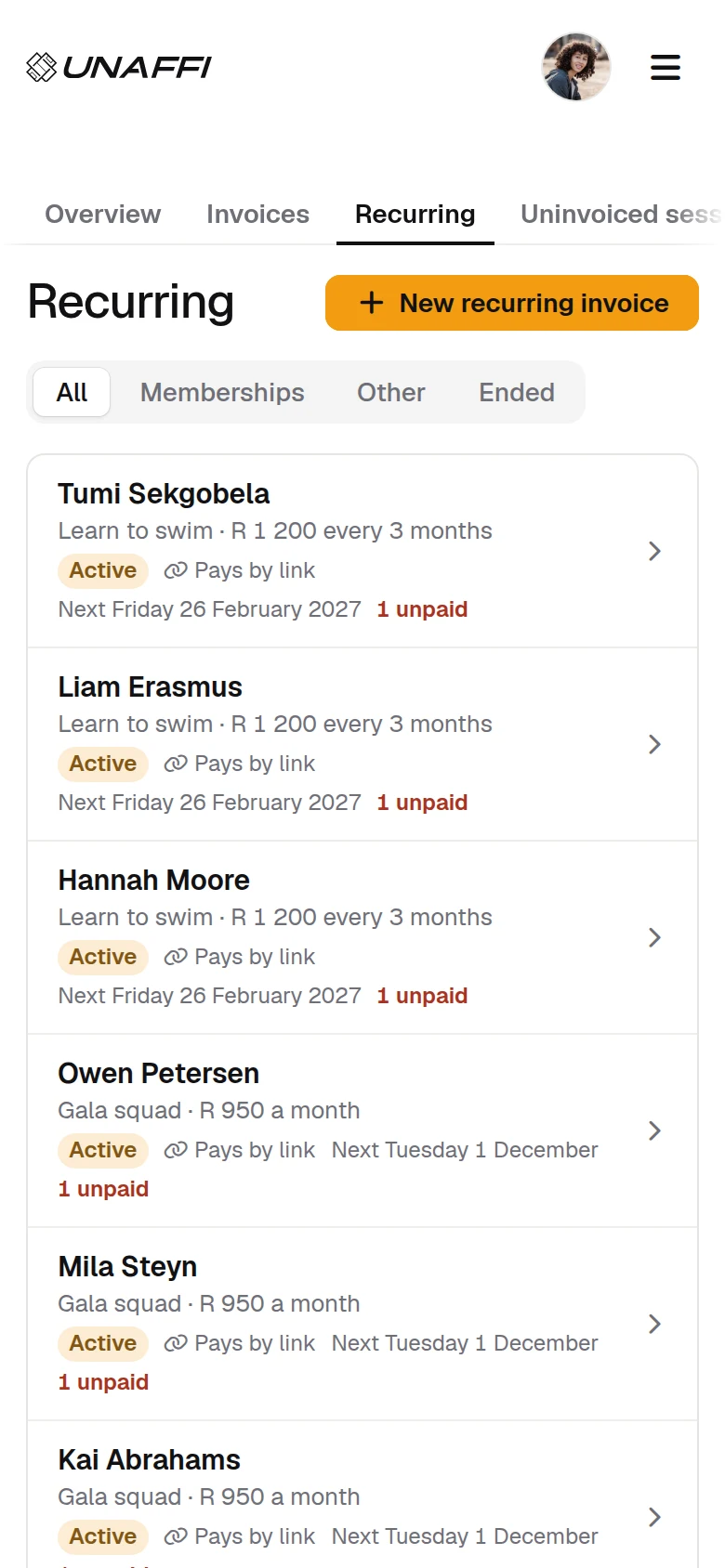
For something that isn't a membership, make a new invoice for An amount and choose Repeats. Choose how often, the first invoice's day, and when it ends: when you end it, on a day, or after a number of invoices. You'll find them all under Finance › Recurring, and each client's on their Invoices tab.
6. Keep track
- Each client shows small chips for the memberships they're on, on your client list and their page. Filter the list by a membership to see its members.
- A chip turns red when a card payment fails. The client is emailed and the card is tried again the next day; after that, they pay by the invoice's link.
- Open a member, or any recurring invoice, to pause it, stop emailing its invoices, give it an end day, or end it now or after the period invoiced last.
- Deactivating a client ends their memberships and recurring invoices.
Questions
Can a membership be free?
Yes. A free one (a school's registration) is never invoiced and needs no card. Give it a sport and its terms or seasons, and each person who joins goes in the group of that sport they fit, by age group and gender. It ends when its last term or season does.
Can members pay less for sessions, events or court hire?
Yes. On anything people book, give each membership its own price or a percentage off; someone on several pays the lowest. Members sign in when they book to get it. You can also make something for members only.
How does paying by card every month work?
When a client joins a membership on your page, they pay their first period by card, and that card pays the rest on their days. A client you add saves their card when they pay their first invoice, by ticking the box. Paystack keeps the card; UNAFFI never sees its number. If a payment fails, they're emailed and the card is tried again the next day.
Can my clients cancel?
Yes, at any time, from the link in their emails or their account. A cancelled membership ends with the period they were invoiced for, and you hear about it. They can also take their card off and pay each invoice by its link instead.
What happens when I change the price?
Every member is emailed, and the new price applies from their next invoice. How often it bills and on which days only change while nobody is on it.
What does it cost?
Nothing extra from UNAFFI: it works on every plan. Paystack's fee comes off each card payment before it reaches your bank account, as with your other invoices. Each invoice counts towards your plan's invoices for the month.
What if my plan's invoices for the month are used up?
The invoice waits, and you're told. It goes out as soon as there's room: when you buy invoice credits, choose a bigger plan, or a new month starts.